Import Workflows
WorktreeWise allows you to share and import automation routines across different projects. Rather than manually reconstructing complex multi-step build, test, and deployment commands, you can import workflow definitions directly from any local repository.
Workflow Storage Architecture
WorktreeWise stores workflow recipes within your repository’s Git administrative directory:
<repository-root>/
└── .git/
    └── WorktreeWise/
        ├── Build & Test/
        │   └── details.json
        └── Clean & Reset/
            └── details.json
Each workflow is defined as a JSON document (details.json) containing the workflow name, initial command, and subsequent sequential execution steps:
{
  "name": "Full CI Validation",
  "command": {
    "key": "0",
    "value": "pnpm install --frozen-lockfile"
  },
  "commands": [
    { "key": "1", "value": "pnpm lint" },
    { "key": "2", "value": "pnpm test:unit" },
    { "key": "3", "value": "pnpm build" }
  ]
}
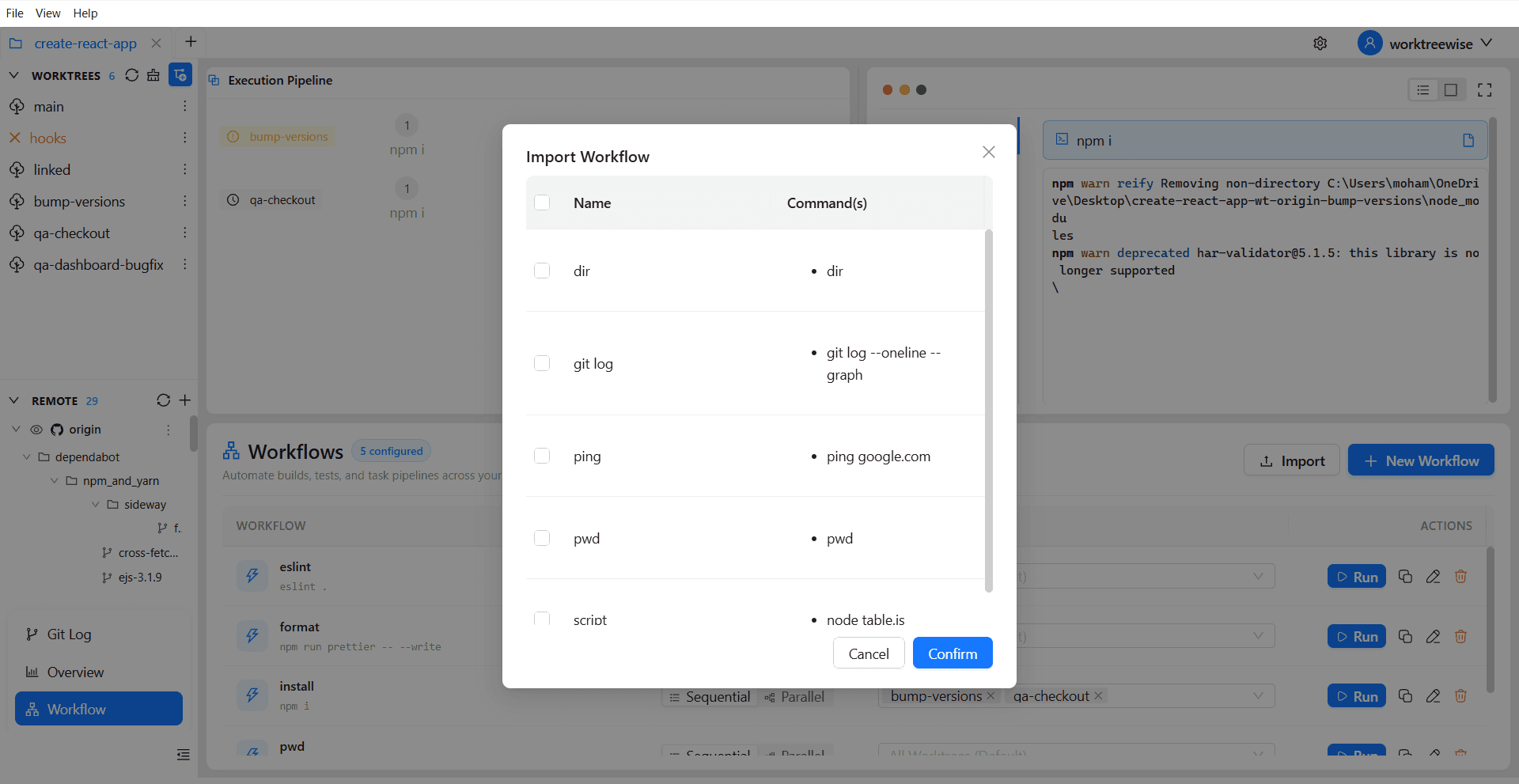
When importing, WorktreeWise scans the target repository’s .git/WorktreeWise/ directory, extracts all definitions, and presents them in an interactive review modal before copying them into the active repository.
Step-by-Step Import Guide
Open the Import Dialog
In the Workflows view, select the Import button in the top action bar, or press the keyboard shortcut:
- Shortcut:
Shift + I
Select the Source Repository
In the native operating system folder picker, navigate to and select the root folder of the repository that contains the workflow configurations you wish to import.
Review Discovered Workflows
WorktreeWise scans .git/WorktreeWise in the target repository and opens the review modal:
- Select All / Individual: Use checkboxes to choose which workflows to import.
- Name: Review the original workflow name.
- Commands: Inspect the ordered preview of shell commands.
Confirm and Import
Select Confirm. WorktreeWise validates the definitions and atomically copies them into the current repository’s .git/WorktreeWise/ directory.
Conflict Detection & Safety Validation
| Condition | System Behavior |
|---|---|
| Name Collision | If an imported workflow shares the exact name of an existing workflow in the active repository, WorktreeWise aborts the import for that workflow with an explicit warning: "A workflow with this name already exists." Local workflows are never silently overwritten. |
| Permission Verification | If the local .git/ directory has restricted permissions (EACCES or EPERM), WorktreeWise displays an actionable alert instructing you to check directory ownership and write permissions. |
| Post-Import Editing | Imported workflows behave identically to native workflows. You can reorder commands, edit parameters, or duplicate them as templates. |
Sharing Workflows Across Teams:
Because workflows are saved in .git/WorktreeWise/details.json, you can version-control workflow templates in a shared repository folder (such as .github/workflows-templates/ or tools/workflows/) and copy them into .git/WorktreeWise/ during project bootstrapping.
Shell & CLI Prerequisites:
Imported workflows execute commands using your local shell environment. Ensure that any required CLI tools, package managers (npm, pnpm, cargo), or environment variables referenced by imported commands are installed on your current machine.
Related Pages
- Run a Workflow: Execute imported workflows across your checkouts.
- Create a Workflow: Define new workflows from scratch.
- Edit & Duplicate Workflows: Modify imported command chains.