Work with AI Agents
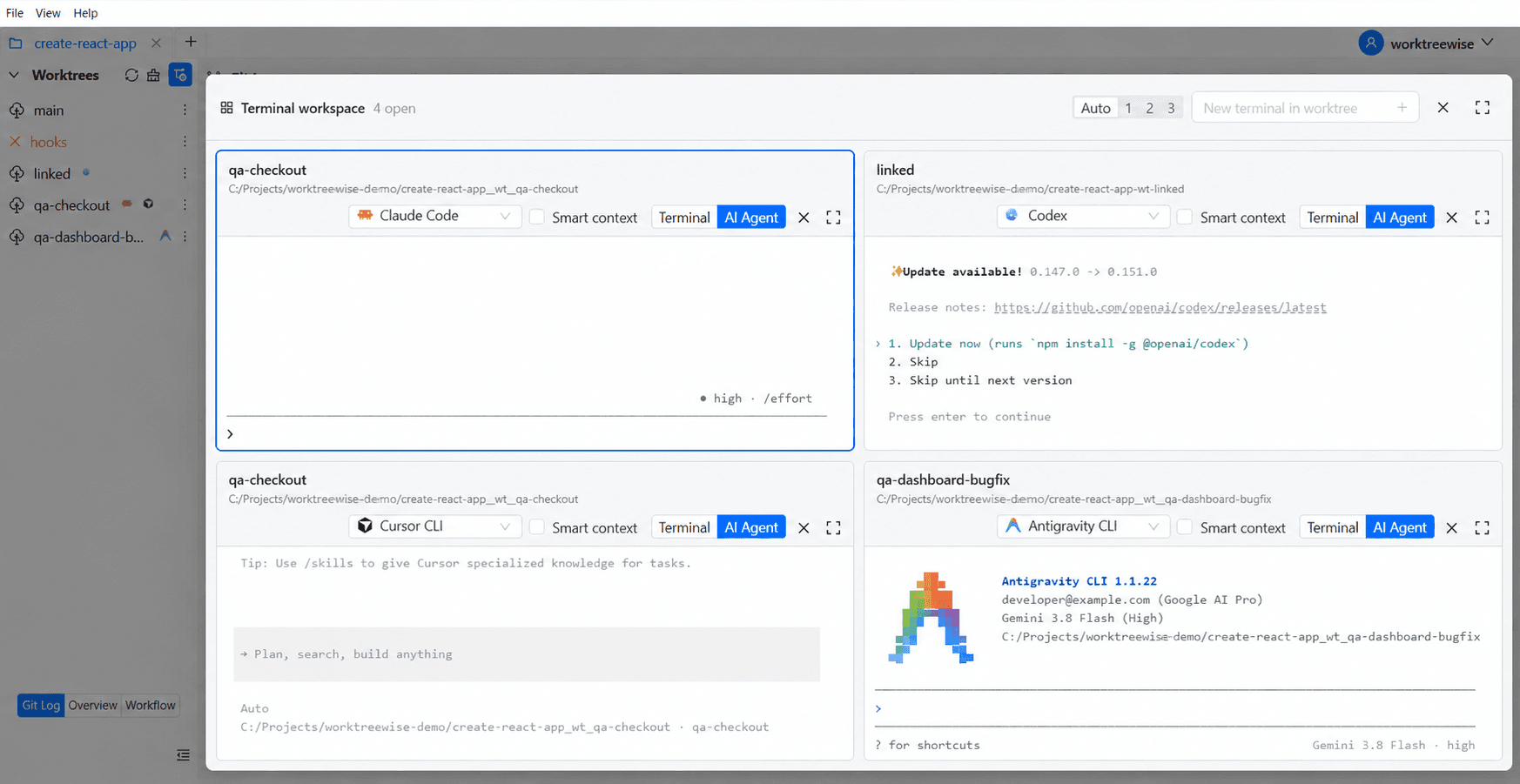
WorktreeWise allows you to run terminal-based AI coding assistants in dedicated, worktree-scoped panes. Because each worktree provides an isolated filesystem directory and Git branch, you can run multiple coding agents concurrently—implementing features, debugging tests, or refactoring code in parallel without dirty working tree conflicts.
Why Use Worktrees with AI Agents?
Running AI coding agents in a traditional single-directory repository creates frequent development bottlenecks:
- Agents overwrite uncommitted changes while you are actively editing other files.
- Running multiple agents on the same branch produces merge conflicts and corrupted index states.
- Background compilers or test watchers trigger rebuild loops when agents edit files in place.
By binding each agent session to a distinct worktree:
- Zero Collision Risk: Agent A implements features in
feature-apiwhile Agent B refactors database schemas inrefactor-db. - Parallel Independent Verification: Build and test changes in one worktree while an agent continues executing in another.
- Atomic Commits & Easy Discards: If an agent produces suboptimal code, discard or delete that worktree without affecting your primary working tree.
Start an AI Agent Session
To launch an agent in a worktree:
- In the Worktrees panel, locate the target worktree.
- Select the three-dot Actions menu and choose Work with AI Agent.
- WorktreeWise opens an interactive pane rooted in that worktree’s directory and initializes your configured default agent.
Alternatively, you can switch any open terminal pane between Terminal and AI Agent mode using the mode toggle at the top of the pane.
Multi-Pane Agent Workspace
WorktreeWise supports up to three concurrent terminal and agent sessions arranged in a configurable grid:
Layout Modes
- Auto: Arranges panes dynamically based on current window width.
- 1 Column: Displays sessions in a single full-width vertical stack.
- 2 Columns: Splits the display into two side-by-side session panes.
- 3 Columns: Displays three concurrent panes side by side.
Per-Pane Controls
- Worktree Selector & Path: Displays the active worktree name and filesystem path tooltip.
- Mode Toggle: Switches between raw shell Terminal and interactive AI Agent.
- Agent Selector: Dropdown to switch between enabled AI assistants (e.g. Claude Code, Cursor CLI, Antigravity).
- Smart Context: Checkbox toggle to attach repository-aware context to prompts.
- Focus / Maximize: Select the Expand icon to maximize a single pane to full view; select Compress to restore the tiled grid.
- Close Pane: Select ✕ to terminate the session and close the pane.
- Keyboard Navigation: Press
Ctrl + PageUporCtrl + PageDownto cycle active focus between panes.
Smart Context
When Smart Context is enabled in an agent pane:
- WorktreeWise inspects the repository structure, active branch name, latest commit SHA, and uncommitted modifications.
- When prompts are submitted, WorktreeWise automatically enriches them with relevant file path context, branch status, and repository metadata.
- This gives the agent immediate project context without requiring you to manually paste directory structures or file paths.
Supported AI Coding Agents
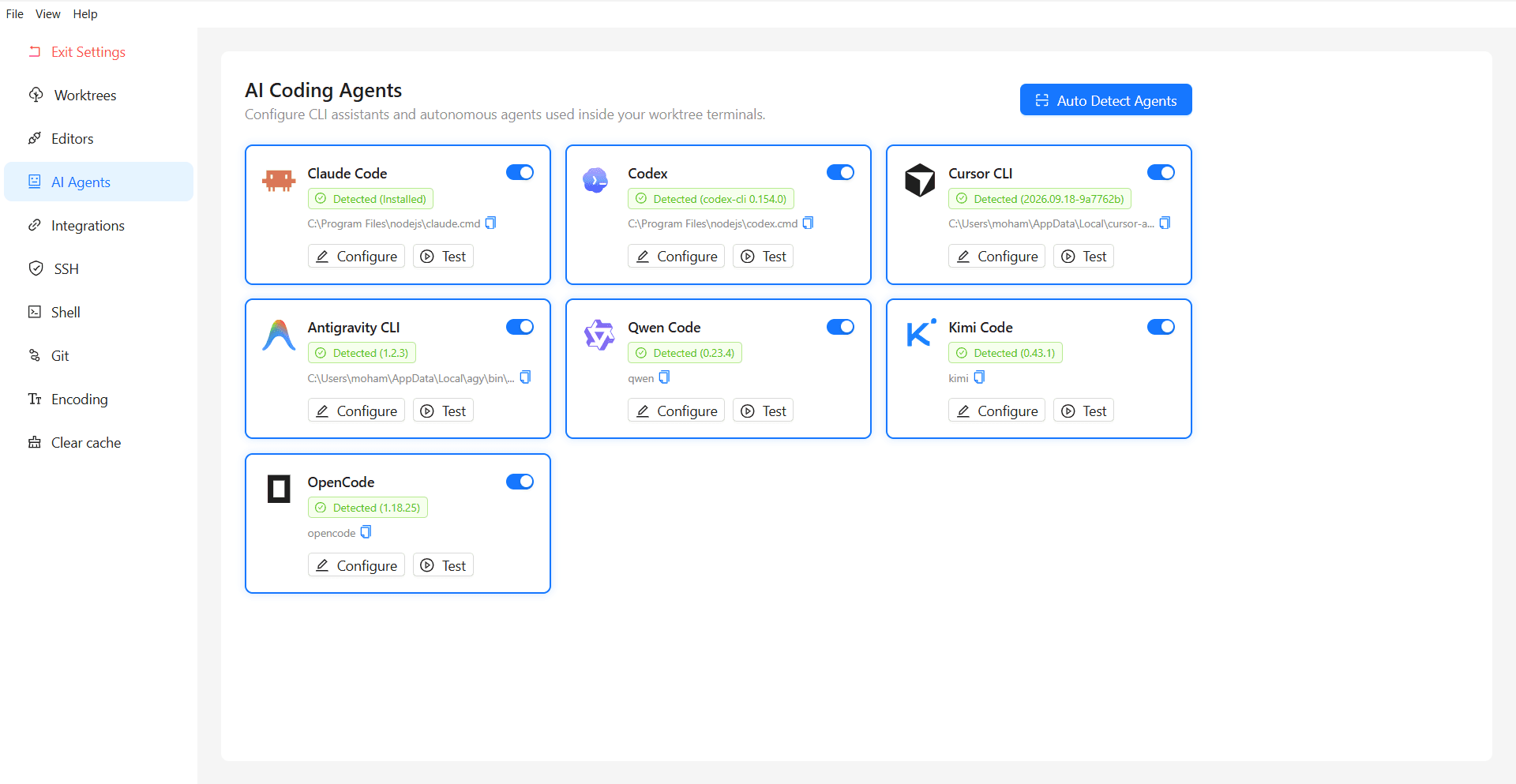
WorktreeWise provides presets and detection for 7 AI coding assistants:
| Agent | CLI Executable | Installation Command | Prerequisites |
|---|---|---|---|
| Claude Code | claude | npm install -g @anthropic-ai/claude-code | Node.js 18+ |
| Codex | codex | npm install -g @openai/codex | Node.js 18+ |
| Cursor CLI | cursor-agent | irm 'https://cursor.com/install?win32=true' | iex (PowerShell) | Cursor installation |
| Antigravity CLI | agy | irm https://antigravity.google/cli/install.ps1 | iex (PowerShell) | Antigravity suite |
| Qwen Code | qwen | npm install -g @qwen-code/qwen-code@latest | Node.js 22+ |
| Kimi Code | kimi | npm install -g @moonshot-ai/kimi-code | Node.js 22.19+ |
| OpenCode | opencode | npm install -g opencode-ai | Node.js 18+ |
Sidebar Status Monitoring
While agents run, you can monitor execution status from the main navigation sidebar:
- A dynamic Robot icon and active agent badge appear in the worktree’s row in the sidebar.
- Hovering over the badge displays which agent is active in that worktree.
- When the agent process finishes or terminates, the badge clears automatically.
Configure Agents in Settings
Open Settings → AI Agents (Shift + S) to customize agent behavior:
- Enable / Disable: Choose which agents appear in the pane dropdown.
- Custom Executables & Flags: Specify custom binary paths and default CLI flags (such as model parameters or temperature).
- Diagnostics: Select Test on any agent card to run a sandbox check that validates PATH configuration and permissions.
Related Pages
- Embedded Terminal Workspace: Use shell terminal panes alongside AI agents.
- AI Agents Settings: Manage agent presets and test executable paths.
- Worktree List and Actions: Launch agent sessions from the Worktrees panel.