Configuring an IDE
The Editors in WorktreeWise allows you to customize your development environment by enabling only the editors you want to use and configuring their paths if needed.
1. Opening Editors Settings
To access the Editors settings:
- Open the Settings window by clicking on File → Settings or using the shortcut Shift + S.
- In the sidebar, select the Editors tab.
2. Activate or Deactivate an Editor
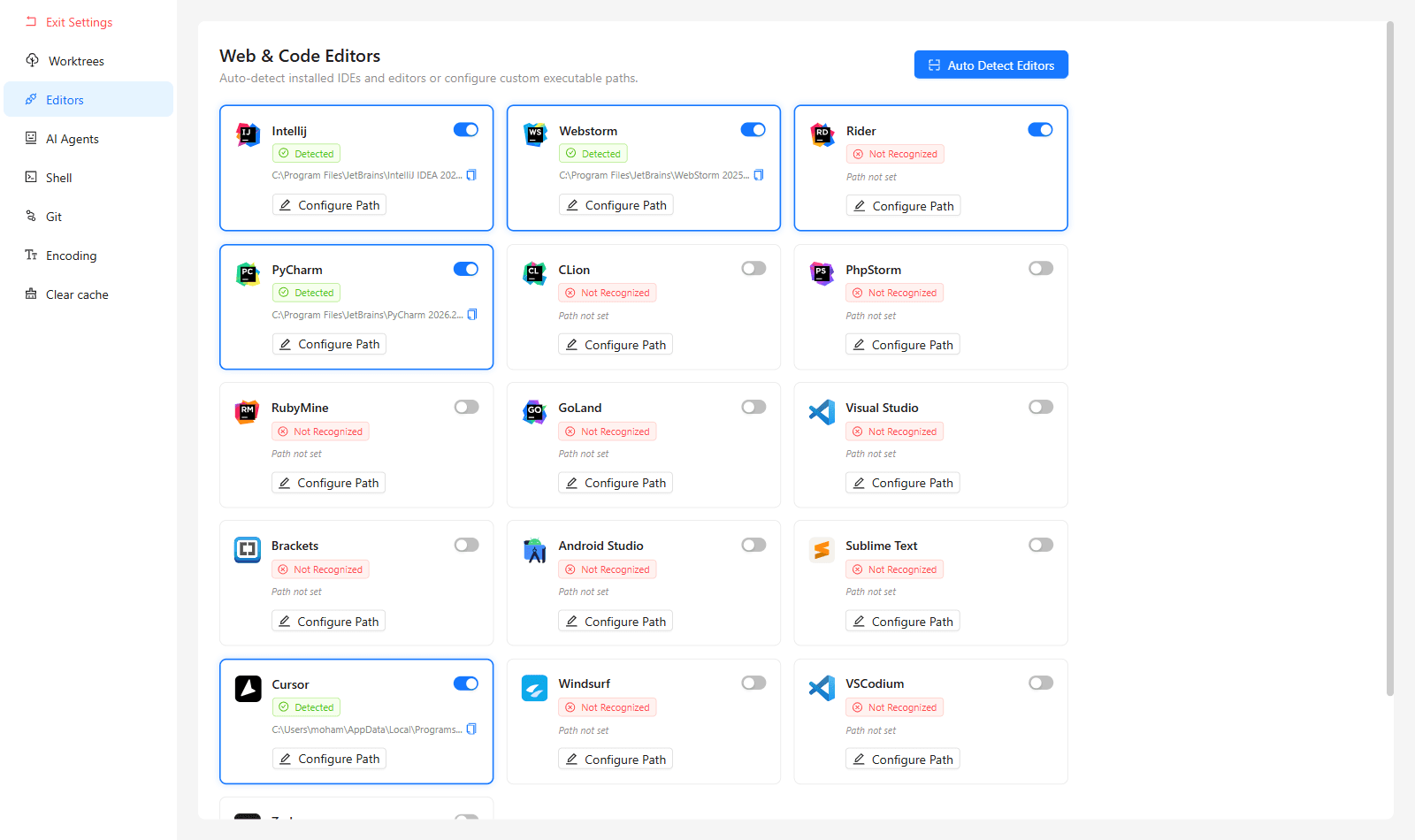
- In the Editors settings, you will see a list of supported editors (e.g., IntelliJ, WebStorm, Rider, PhpStorm, Visual Studio, Sublime Text, etc.).
- Each editor is displayed as a card with its logo and name.
- To activate an editor: Click on the editor’s card. The editor will be highlighted (with a blue border) to indicate it is enabled.
- To deactivate an editor: Click again on the highlighted card. The blue border will disappear, meaning the editor is no longer active.
3. Configure the Path of an Editor
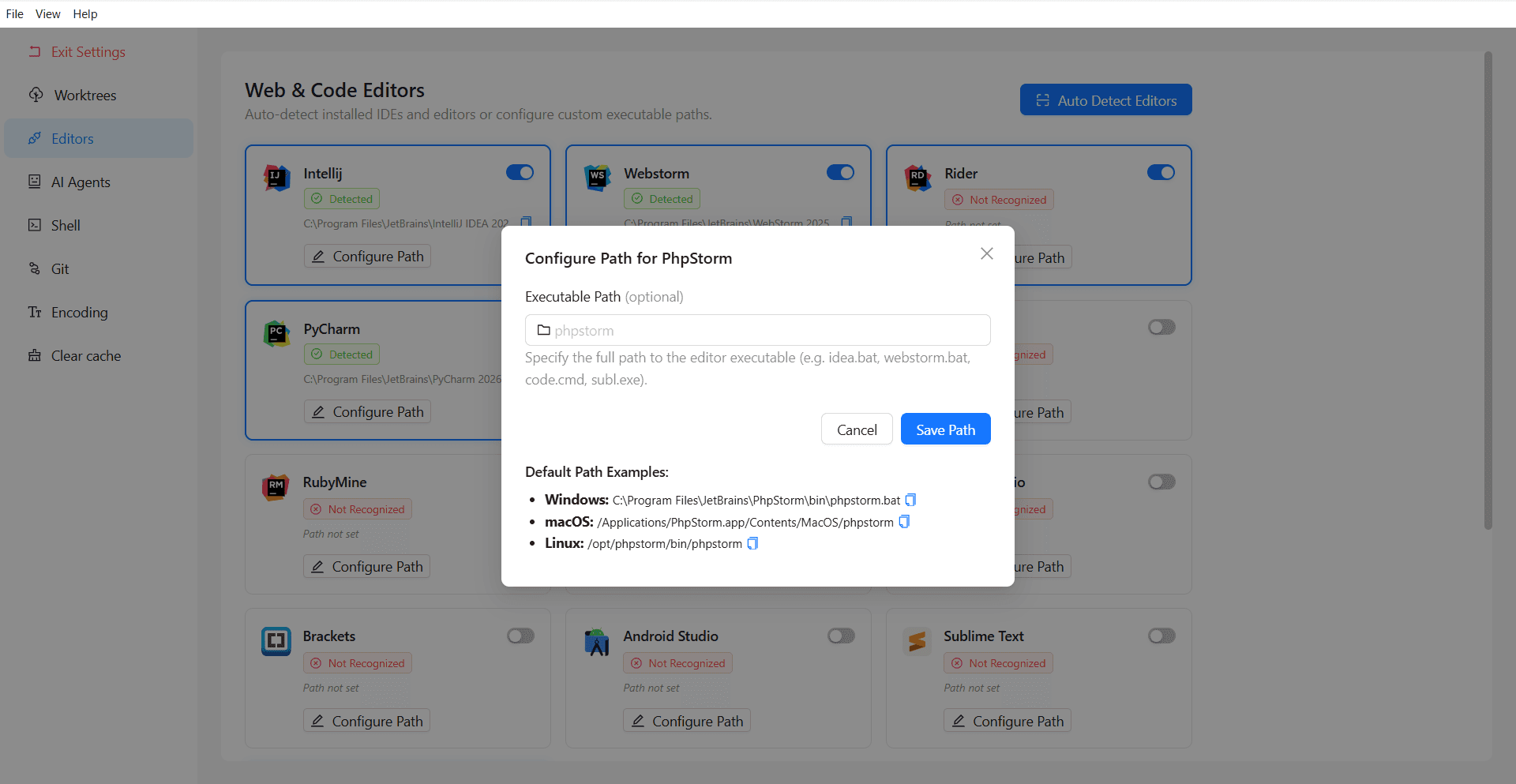
Some editors may require a custom path to be set if WorktreeWise cannot automatically detect their installation.
- To configure the path of an editor:
- Click on the pencil icon ✏️ on the editor’s card.
- A dialog box will appear with a field labeled Path (optional).
- Enter the full path to the editor’s executable file.
- Click Edit to save the changes.
Opening a Worktree in an IDE
WorktreeWise allows you to open a worktree in a supported IDE with just a few clicks.
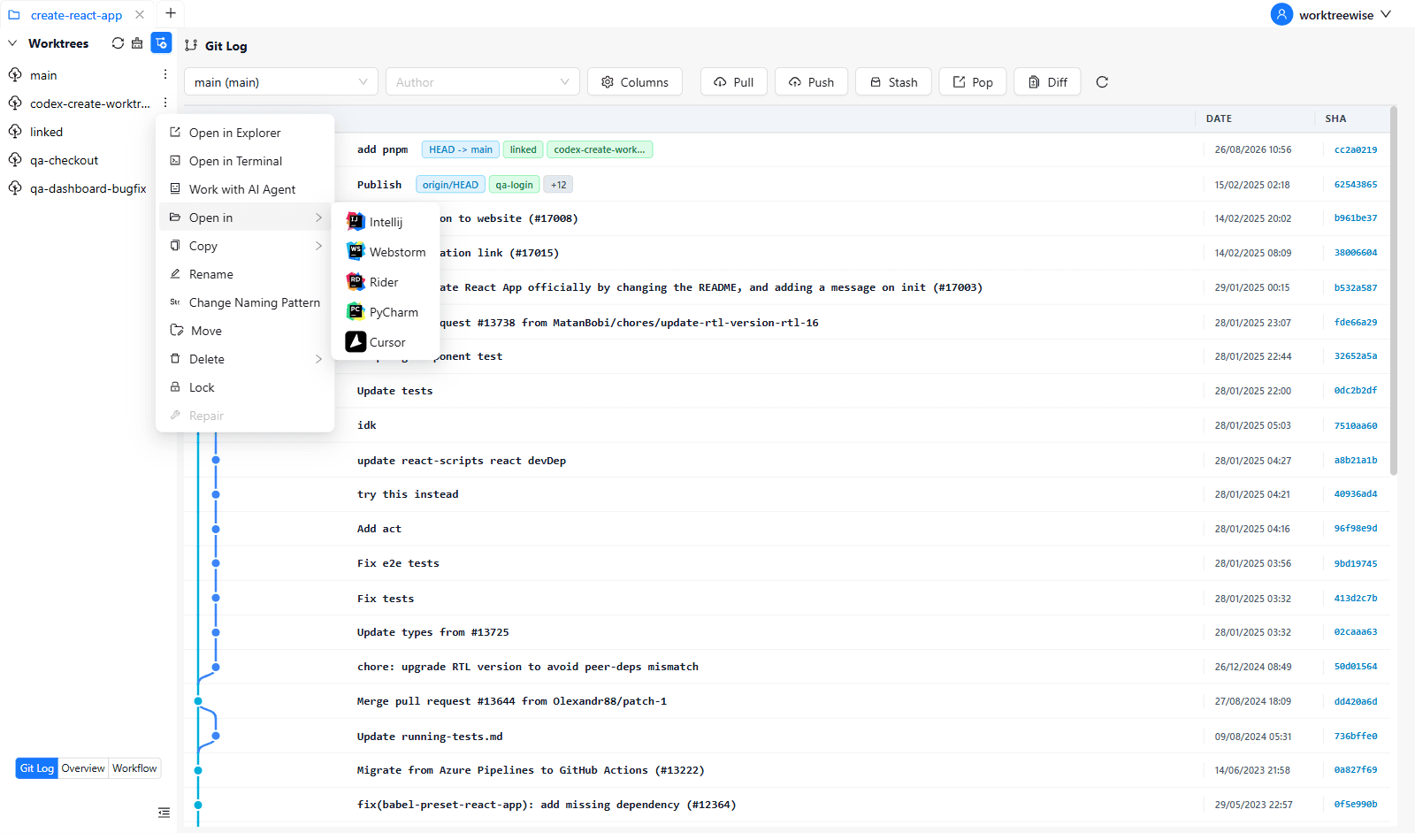
To open a worktree in your preferred IDE:
- Locate the worktree you want to open.
- Click the Open in button.
- If multiple editors are configured, select the desired IDE.
- The selected IDE will launch with the worktree opened.
Preserved IDE Settings
When you open a worktree through WorktreeWise, your IDE automatically loads all the configuration inherited from your main worktree. This means you don’t need to manually recreate or reconfigure anything for each new worktree.
WorktreeWise ensures that the following IDE elements are retained:
-
Bookmarks
-
Run/Debug configurations
-
Scripts and tools
-
Version control settings
-
Recent files and edit history
-
Any other IDE-level configuration stored for the main worktree
This allows you to work in a perfectly consistent environment across all your worktrees. Simply open any worktree from WorktreeWise, and your IDE is ready with your familiar setup — no extra steps required.