WorktreeWise Documentation
WorktreeWise is a desktop application for managing and automating Git worktrees. It enables you to work across multiple branches simultaneously in isolated directories on disk—without branch switching, stash conflicts, or repeated dependency installations.
Current documentation covers WorktreeWise 1.2.0. To review new features in this release, see What’s new in 1.2.0.
What are Git Worktrees?
In a standard Git workflow, a single working directory is attached to one branch at a time. Switching branches requires stashing or committing uncommitted changes, rebuilding project assets, and restarting development servers.
A Git worktree allows you to attach multiple working directories to the same repository. Each worktree is checked out to its own branch and maintains its own filesystem directory:
- Work on features in parallel: Run long builds or test suites in one worktree while continuing active development in another.
- Isolate dependencies and ports: Prevent runtime collisions using worktree-scoped environment files and separate dev server ports.
- Dedicated AI workspaces: Run autonomous AI coding agents in separate worktree directories without file-write race conditions or dirty working trees.
- Shared Git history: All worktrees share the same underlying
.gitobject database, saving disk space compared to separate repository clones.
Feature Overview
Create, list, rename, relocate, lock, repair, and prune worktrees with dependency sharing and sparse checkout.
Git WorktreesInspect repository health metrics, branch divergence, uncommitted modifications, and 4-way disk consumption.
Worktree OverviewOpen worktrees in embedded multi-pane terminals or launch directly into VS Code, Cursor, Windsurf, or JetBrains IDEs.
Terminal & IDEsRun up to three concurrent AI agents (Claude Code, Codex, Cursor CLI, Antigravity) with Smart Context injection.
AI Coding AgentsDefine ordered command chains and execute them across multiple worktrees sequentially or in parallel.
Automated WorkflowsExplore commit history with Git Log, author atomic commits with inline staging, and compare revisions with Git Diff.
Git OperationsInstallation
Prerequisites
Before installing WorktreeWise, verify that your system meets the following requirements:
| Requirement | Details |
|---|---|
| Git | Git 2.20 or later must be installed on your machine. |
| PATH Configuration | The Git binary (git or git.exe) must be present in your system PATH. |
| Operating System | Windows 10/11, macOS 11 (Big Sur) or later, or modern 64-bit Linux distributions. |
Download WorktreeWise
Download the official installer for your operating system:
System-Specific Security Notices
Windows SmartScreen: Double-clicking the Windows installer may trigger a Windows SmartScreen notice. Click More info, then select Run anyway to proceed with installation.
macOS Security: macOS may block unnotarized applications on first launch. If prompted, open System Preferences → Security & Privacy → General (or System Settings → Privacy & Security) and select Open Anyway.
Run the Installer
- Launch the downloaded installer executable.
- Follow the on-screen prompts to complete installation.
- Once installation finishes, launch WorktreeWise.
First Launch & License Activation
When you launch WorktreeWise for the first time, activate your license and open a repository:
1. Open a Repository
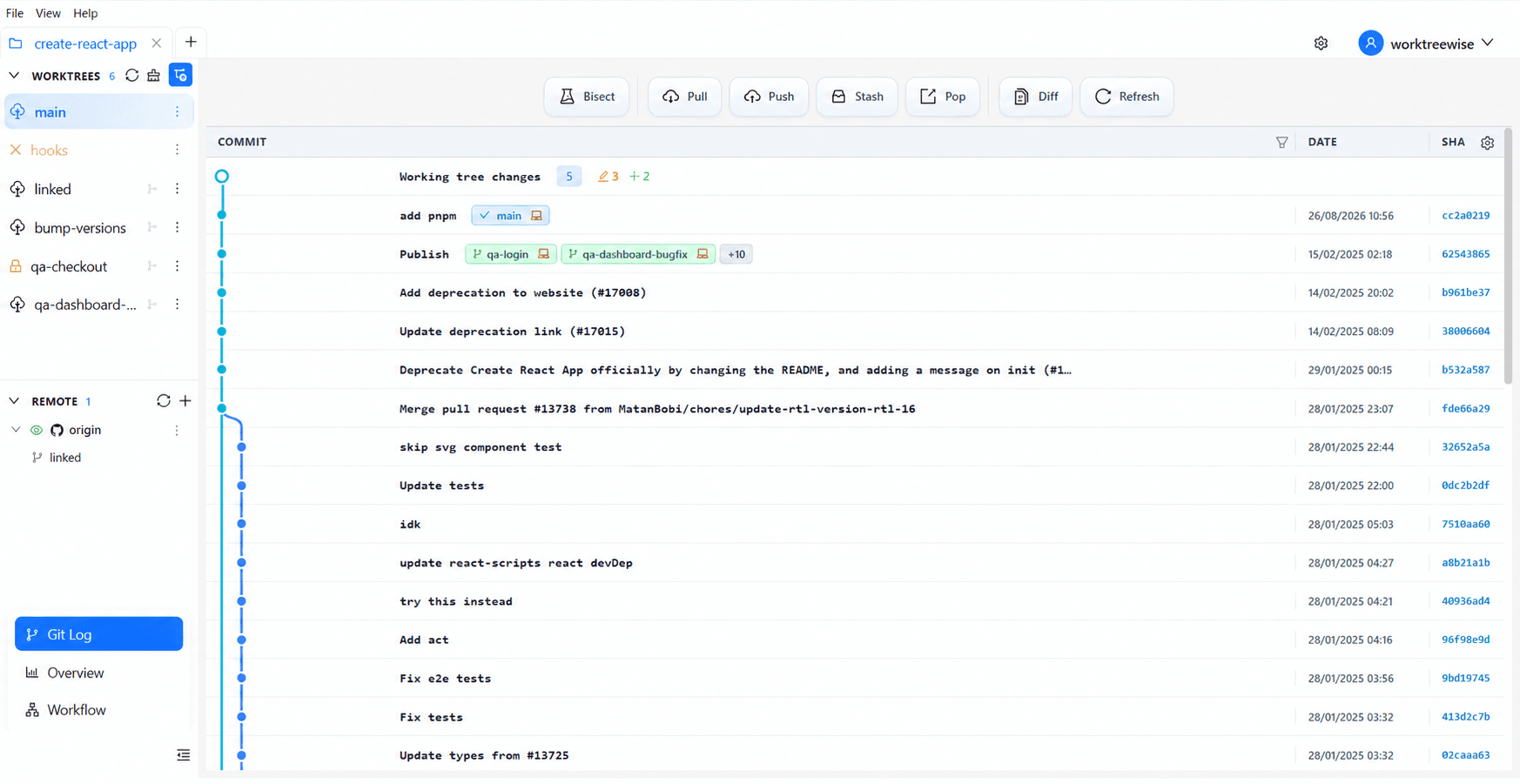
Upon launch, WorktreeWise displays the repository chooser screen. Select Open Repository and browse to any local Git repository.
2. Enter License Details
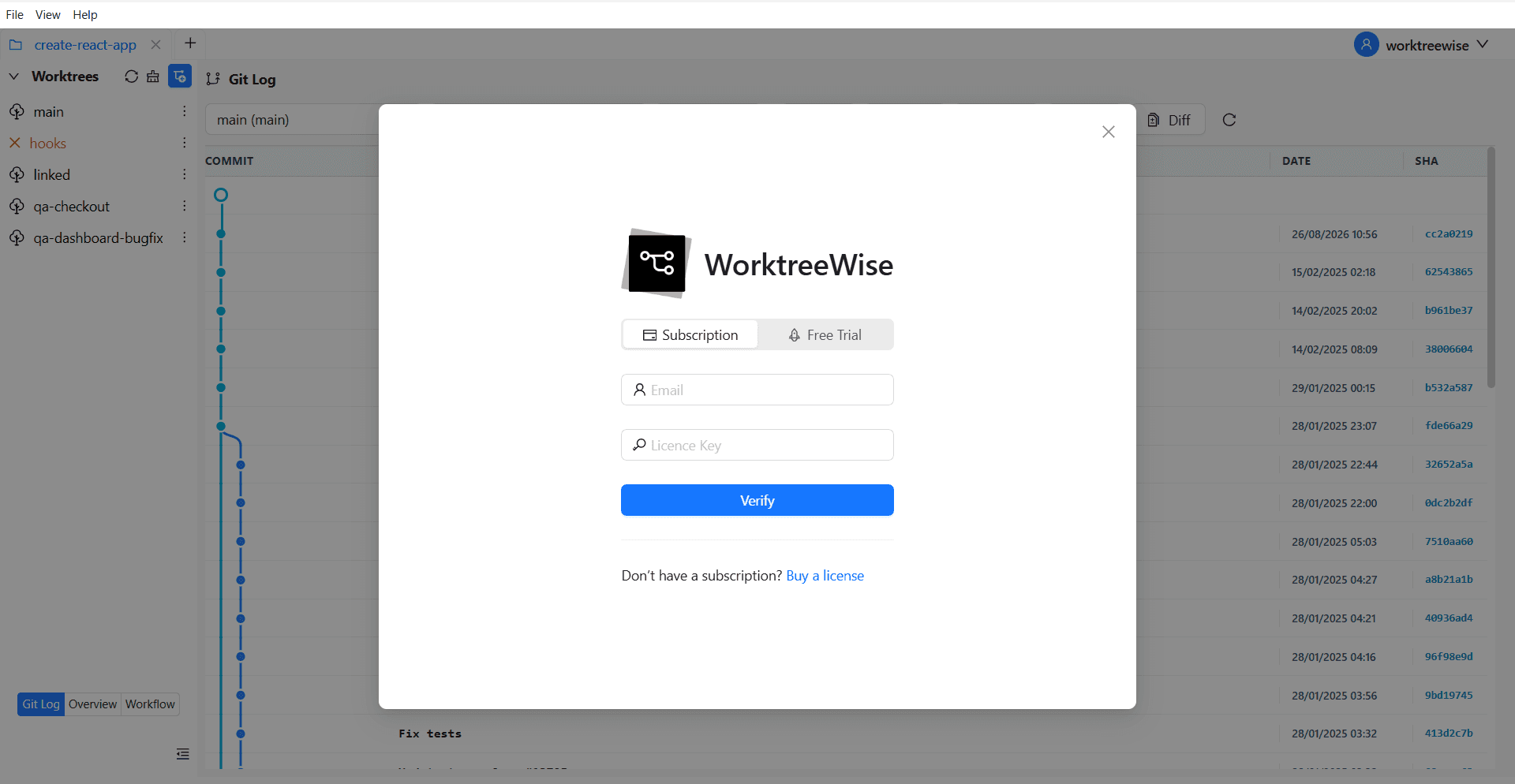
When opening a repository for the first time, the activation dialog appears:
- Email: Enter the email address associated with your WorktreeWise purchase.
- License key: Enter the unique key received in your purchase confirmation email.
Click Verify to complete activation.
3. Start Working
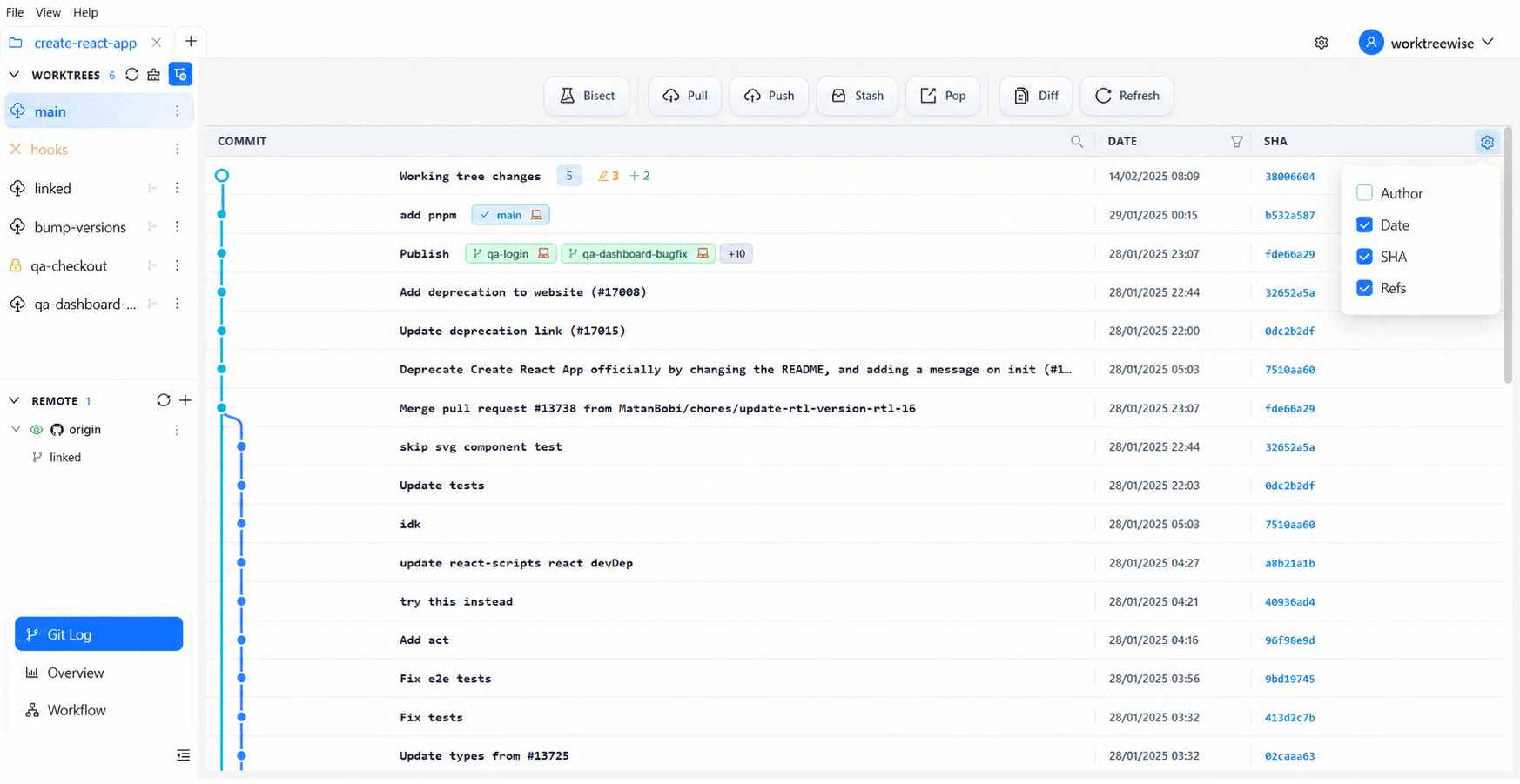
Once verified, WorktreeWise loads your repository’s primary worktree and commit history in the Git Log view:
Next Steps
- Create your first worktree from HEAD, a branch, or a tag.
- Inspect repository health and disk usage in the Worktree Overview dashboard.
- Configure external editors and IDEs to open worktrees with preserved settings.
- Run multi-step command sequences across your worktrees.