Worktree List and Actions
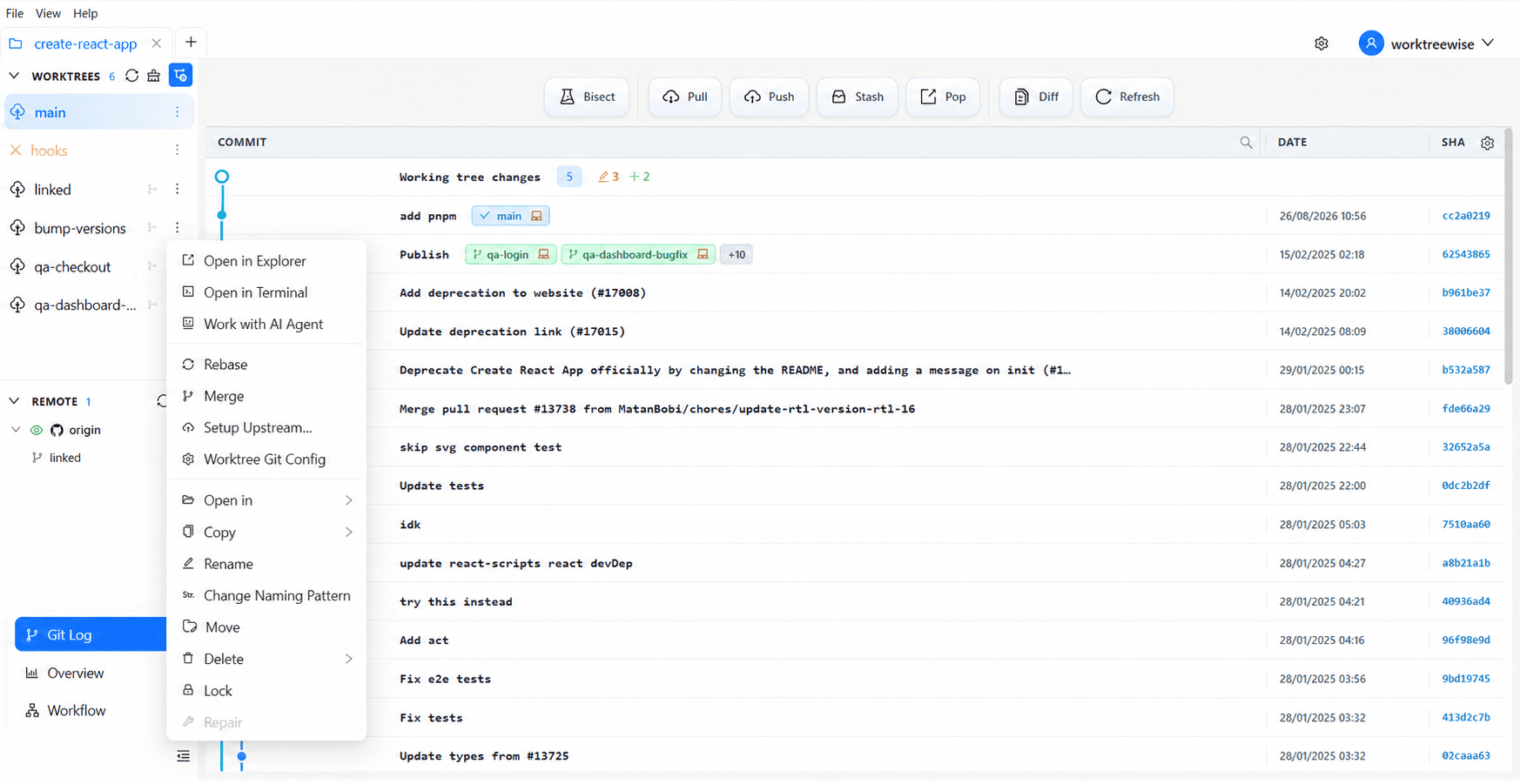
The Worktrees panel displays all primary and linked worktrees registered in your repository. It provides live status badges for running AI agents and terminal processes, along with a comprehensive context menu for development and maintenance actions.
Panel Organization
The Worktrees panel organizes your checkouts into distinct sections:
- Primary Worktree: Displayed at the top with a distinct
Primarybadge. Represents your repository clone root. - Linked Worktrees: Listed underneath. Each row displays the worktree branch name, directory tooltip, lock indicator, and real-time status.
- Active Agent Indicator: When an AI agent (such as Claude Code, Codex, or Cursor) is running in a worktree, an agent badge appears on the row so you can monitor background tasks at a glance.
Toolbar Controls
The toolbar at the top of the Worktrees panel provides quick-access buttons:
| Control | Shortcut | Action |
|---|---|---|
| Add Worktree | Shift + W | Open the Create Worktree modal |
| Refresh | Shift + R | Reload statuses, branches, and filesystem directories from disk |
| Prune Worktrees | Shift + P | Open the Review-First Prune dialog to inspect and remove stale records |
| Overview | Shift + O | Switch to the repository health and disk usage dashboard |
Context Actions Menu
Select the three-dot menu (⋮) beside any worktree to access its actions:
Development Actions
| Action | Description |
|---|---|
| Open in Explorer / Finder | Open the physical worktree directory in your operating system file manager. |
| Open in Terminal | Launch a worktree-scoped terminal session in the embedded terminal grid. |
| Work with AI Agent | Open the workspace directly in AI Agent mode with your default coding assistant. |
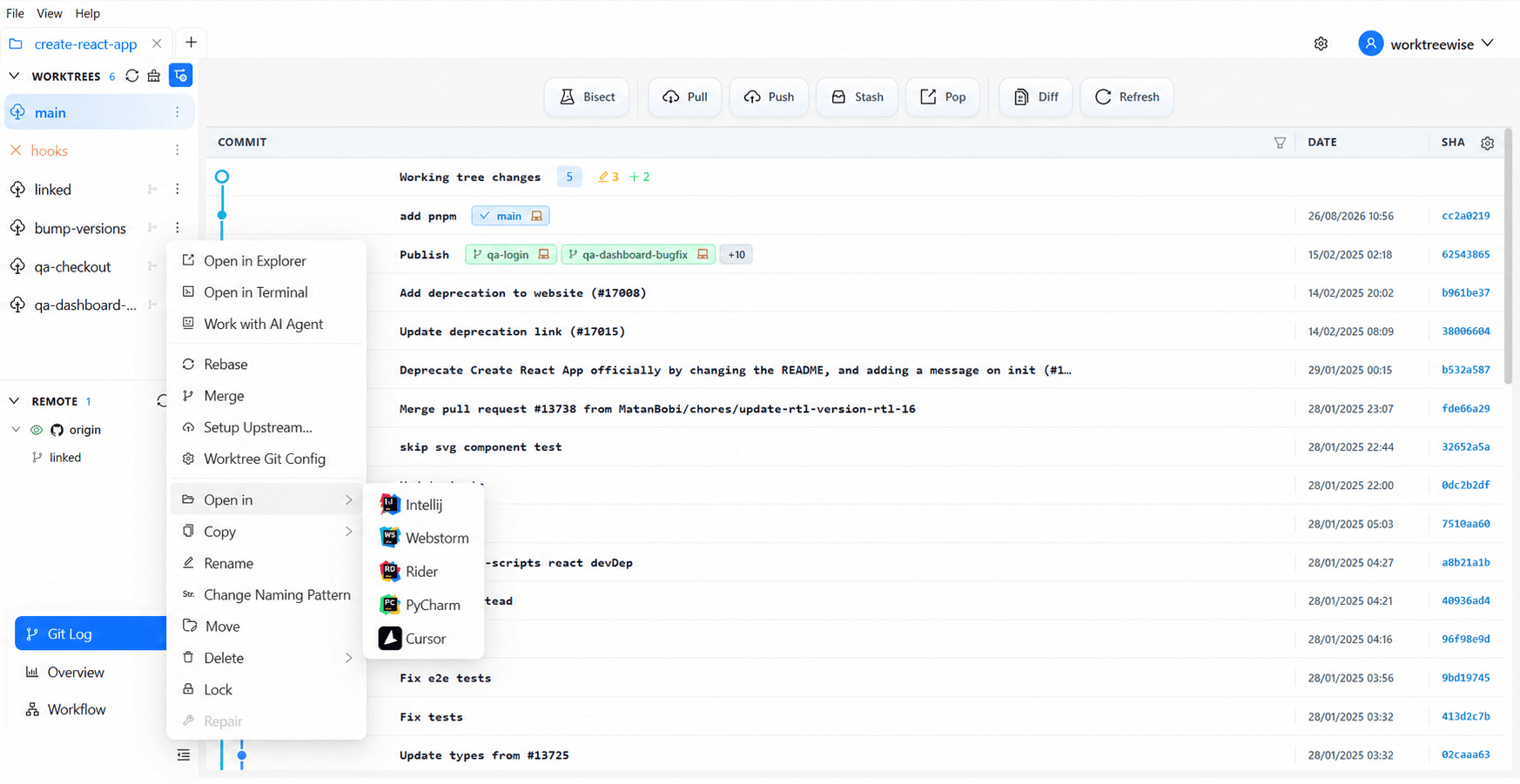
| Open in [Editor / IDE] | Launch the worktree directly in an enabled editor (VS Code, Cursor, Windsurf, JetBrains) with preserved configurations. |
Clipboard Actions
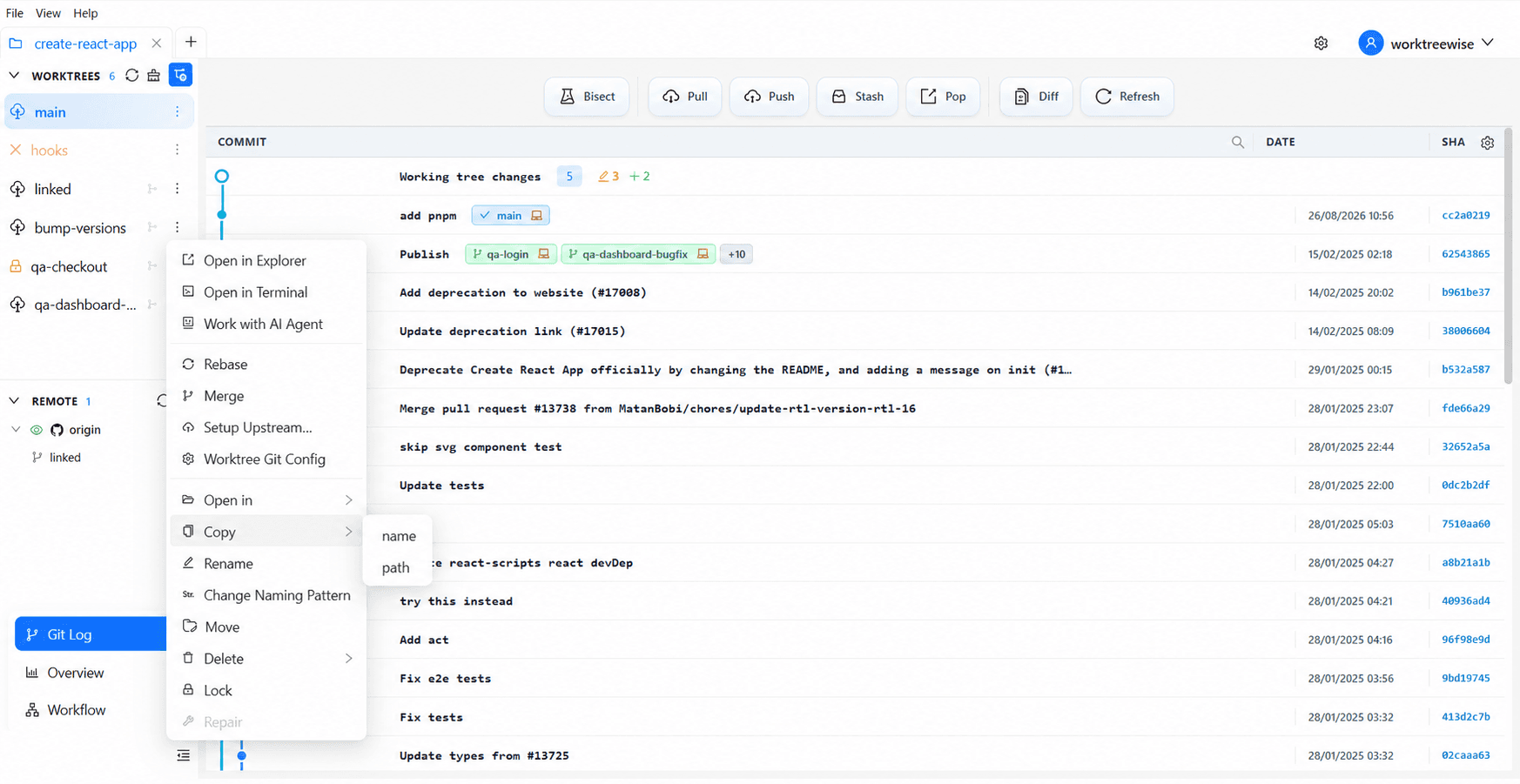
Hover over Copy in the menu to access:
- Copy Name: Copies the worktree or branch name to your clipboard.
- Copy Path: Copies the absolute filesystem directory path.
Maintenance & Safety Actions
| Action | Description |
|---|---|
| Rename | Rename the worktree folder and synchronize the underlying Git branch name atomically. |
| Change Folder (Move) | Relocate the worktree directory to another path while updating Git administrative pointers. |
| Change Naming Pattern | Re-evaluate the worktree folder name against configured naming templates. |
| Lock / Unlock | Apply or remove administrative lock protection with a descriptive reason. |
| Delete | Open the safe deletion dialog to remove the directory or both directory and branch. |
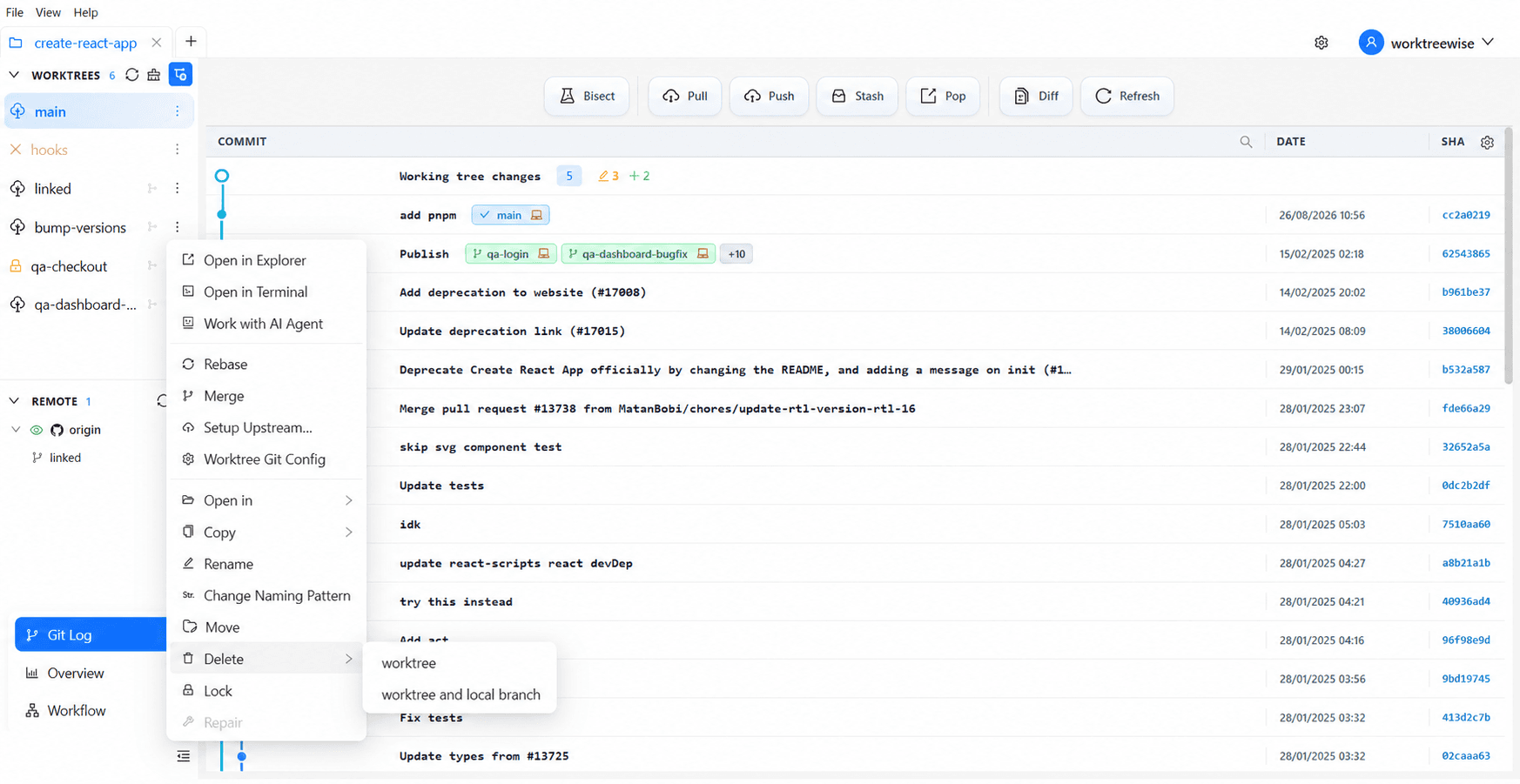
Safety guardrails automatically disable destructive actions (Delete, Rename, Move) on the primary worktree and any worktrees currently marked as locked.
Related Pages
- Worktree Overview Dashboard: View health metrics and disk footprint across all worktrees.
- Open a Worktree in an IDE: Configure editors and launch worktrees with preserved settings.
- Embedded Terminal Workspace: Work inside worktree-scoped command lines.
- Lock a Worktree: Protect critical worktrees from accidental deletion or pruning.