Delete a Git Worktree
Deleting a worktree removes its filesystem directory and deregisters it from Git. WorktreeWise gives you deliberate control over whether the associated Git branch is kept or deleted alongside the folder, with built-in safeguards to prevent accidental data loss.
Deletion Scopes
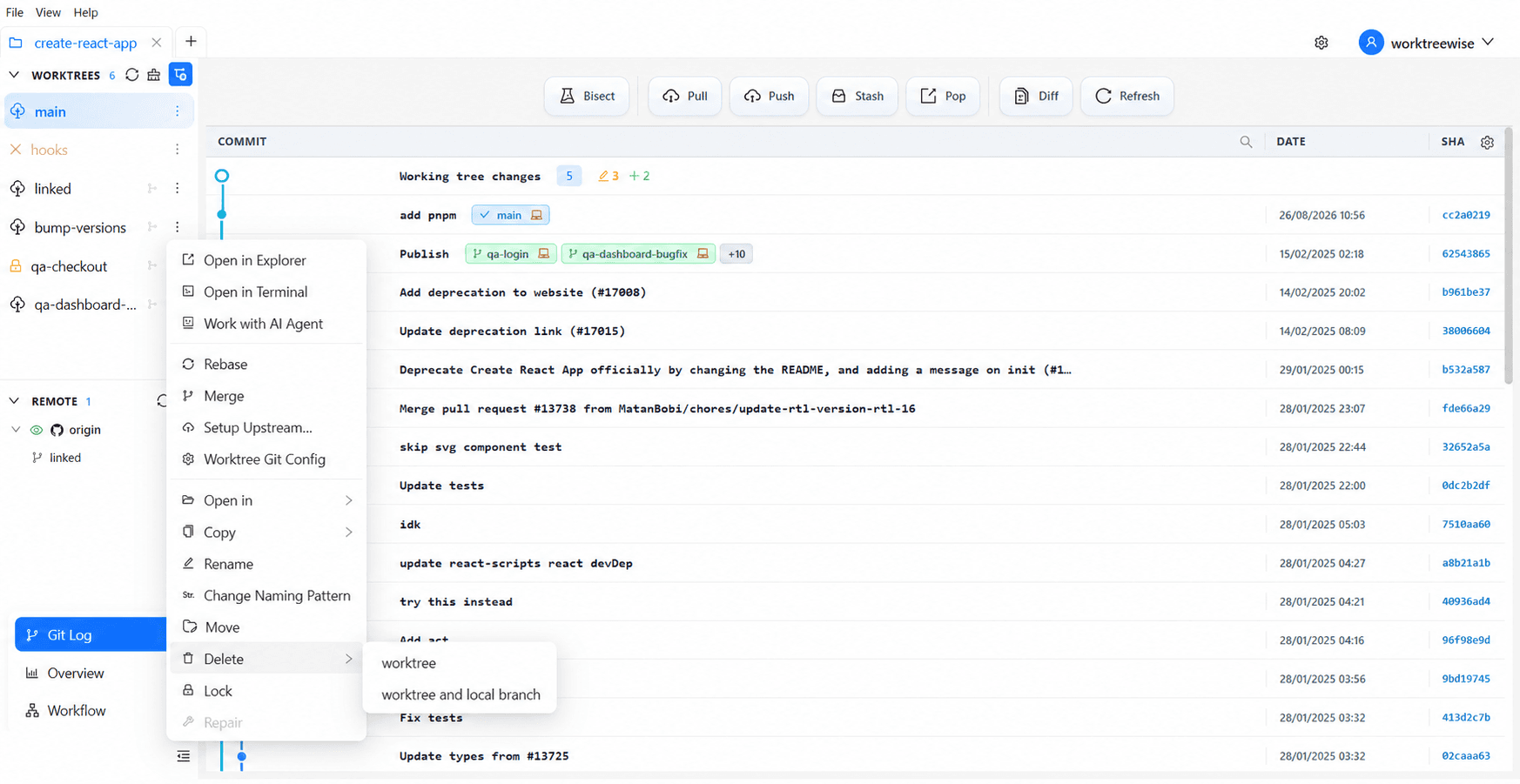
When initiating a deletion from the Worktree Actions menu, WorktreeWise provides two deletion scopes:
| Scope | Filesystem Directory | Git Branch | Best Used For |
|---|---|---|---|
| Delete Only Worktree | Permanently removed from disk | Preserved intact in repository history | Merged pull requests or finished tasks where you want to keep commit history or check out the branch again later. |
| Delete Worktree and Branch | Permanently removed from disk | Deleted (git branch -D) | Temporary spike investigations, discarded experiments, or branches already merged and deleted on remote. |
Selecting Delete Worktree and Branch permanently removes the local Git branch reference. Ensure all important commits have been pushed to an upstream repository before confirming.
How to Delete a Worktree
- In the Worktrees panel, locate the worktree you want to delete.
- Select the three-dot Actions menu and choose Delete.
- Select your desired scope: Delete Only Worktree or Delete Worktree and Branch.
- Select Delete to confirm.
Handling Uncommitted Changes (--force Protection)
Git protects against accidental data loss by refusing to delete any worktree that contains uncommitted modifications, staged changes, or untracked files.
If WorktreeWise detects uncommitted changes during deletion:
- It halts the standard deletion flow.
- A high-visibility confirmation dialog appears:
“Changes have been found in the worktree. Confirm deletion of this worktree [and local branch]?”
- You can choose:
- No: Cancels the deletion so you can open the worktree in a terminal or IDE, inspect changes, and commit or stash them.
- Yes (Danger): Instructs WorktreeWise to apply Git’s
--forceflag, discarding all uncommitted files and completing the deletion.
Safety Safeguards & Restrictions
- Primary Worktree Immunity: The repository’s primary (main) worktree can never be deleted. Its delete action is permanently disabled.
- Lock Protection: Any worktree marked with an administrative lock cannot be deleted. Unlock the worktree first before deleting.
- Active Process Checks: Before deleting, ensure no embedded terminals, development servers, or AI agent sessions are actively running inside the folder to avoid file-locking errors.
Related Pages
- Lock a Git Worktree: Protect worktrees from accidental deletion.
- Prune Damaged Worktrees: Remove orphaned worktree records whose folders are already gone.
- Worktree Overview Dashboard: Monitor clean and dirty worktrees across your repository.