Embedded Terminal Workspace
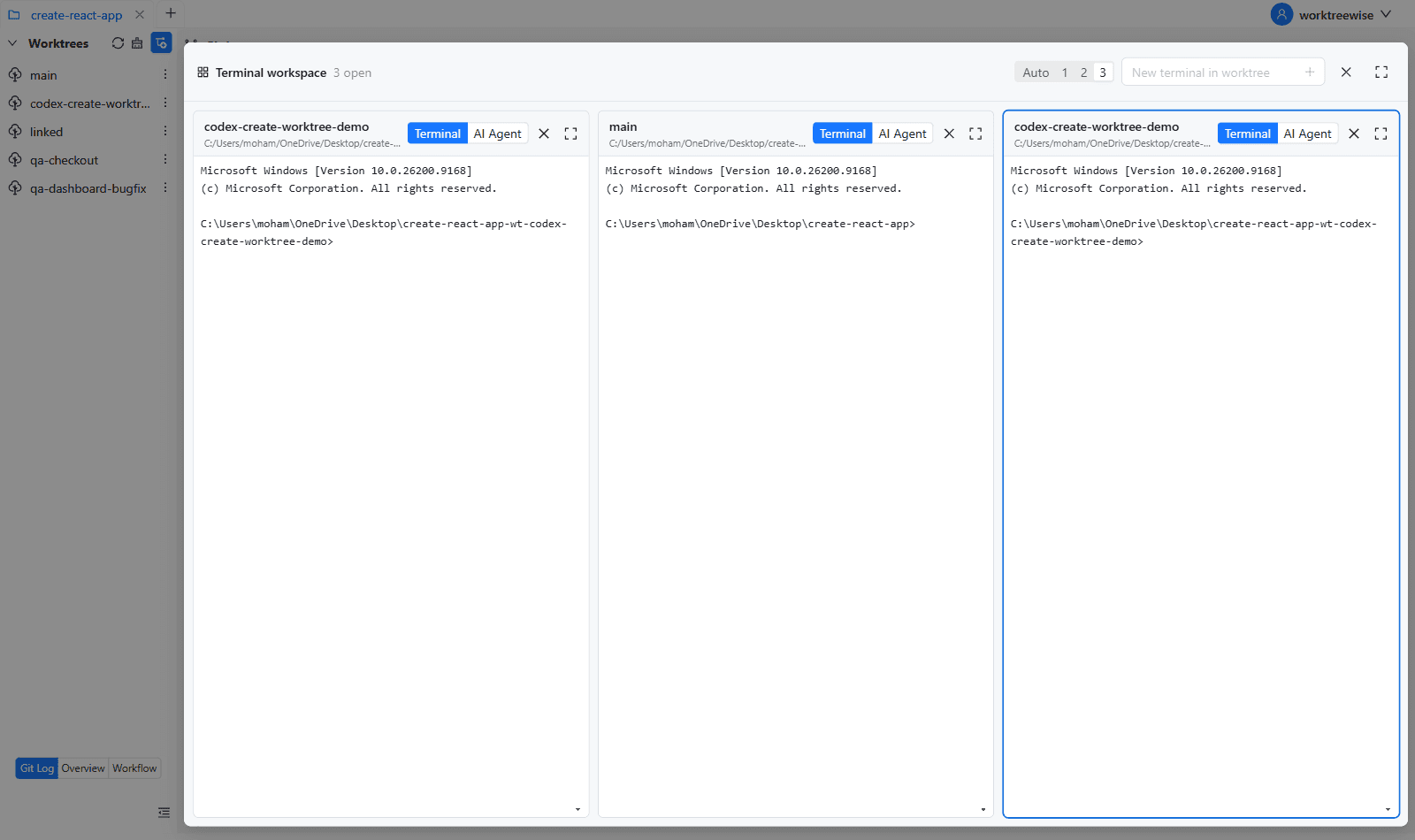
WorktreeWise features a built-in, hardware-accelerated terminal workspace powered by XTerm.js. Every terminal pane opens directly inside the specific worktree’s directory, enabling you to run commands, start local servers, execute tests, or run Git operations without managing external console windows.
Launching a Terminal
To open an embedded terminal for any worktree:
- In the Worktrees panel, locate the target worktree.
- Click the three-dot Actions menu and choose Open in Terminal.
- A terminal pane initializes instantly, with its working directory set to that worktree’s root folder.
Tiled Multi-Terminal Layout
WorktreeWise supports concurrent multi-terminal workflows with flexible tiling options:
Adding New Panes
Click New terminal in worktree in the top toolbar to add additional panes. You can:
- Open another terminal in the same worktree (e.g. running a Vite dev server in pane 1 while running tests in pane 2).
- Open a terminal in a different worktree (e.g. comparing build commands between
mainand a feature branch).
Column Configurations
Control the grid structure using the layout switcher:
- Auto: Automatically organizes panes based on your window width.
- 1 Column: Stacks terminals vertically in full-width rows.
- 2 Columns: Splits the display into two side-by-side terminal columns.
- 3 Columns: Arranges three concurrent terminal panes side by side.
Pane Controls & Features
Each terminal pane operates as an independent session:
- Worktree Header: Identifies the attached worktree and displays its full path tooltip.
- Mode Switching: Toggle seamlessly between raw Terminal shell mode and interactive AI Agent mode using the segmented control.
- Focus & Maximize: Click the Expand icon to maximize a single pane to full view—useful for inspecting long stack traces or wide logs. Click Compress to restore the tiled grid.
- Session Termination: Click ✕ to terminate the underlying shell process and close the pane.
- Keyboard Navigation: Press
Ctrl + PageUporCtrl + PageDownto cycle keyboard focus between open panes.
Shell Configuration & Auto-Detection
Terminals use the active shell configured under Settings → Shell (Shift + S):
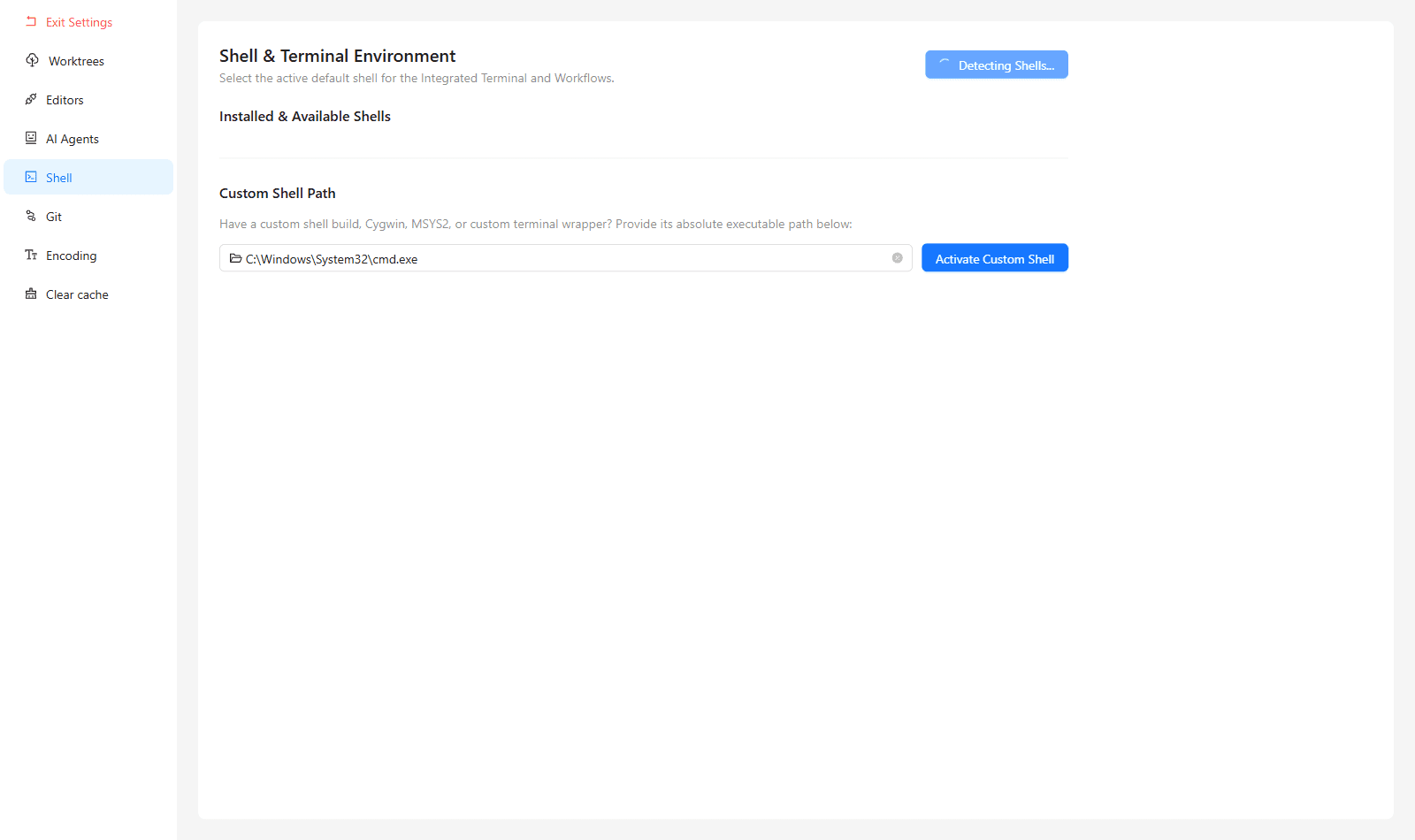
WorktreeWise automatically detects installed shells on your system:
- Windows: PowerShell Core (
pwsh), Windows PowerShell (powershell), Command Prompt (cmd), Git Bash (git-bash), WSL (wsl). - macOS & Linux: Zsh (
zsh), Bash (bash), Fish (fish), Nushell (nu), POSIX Shell (sh). - Custom Shell: Enter an absolute path to a custom shell executable in Settings.
Theme Synchronization
The terminal’s color palette adapts automatically to your application theme:
- Dark Mode: High-contrast GitHub Dark palette (
#0d1117background with crisp ANSI colors). - Light Mode: Clean GitHub Light palette (
#ffffffbackground with optimized contrast). - Meets WCAG accessibility contrast ratios (minimum 4.5:1).