Git Log
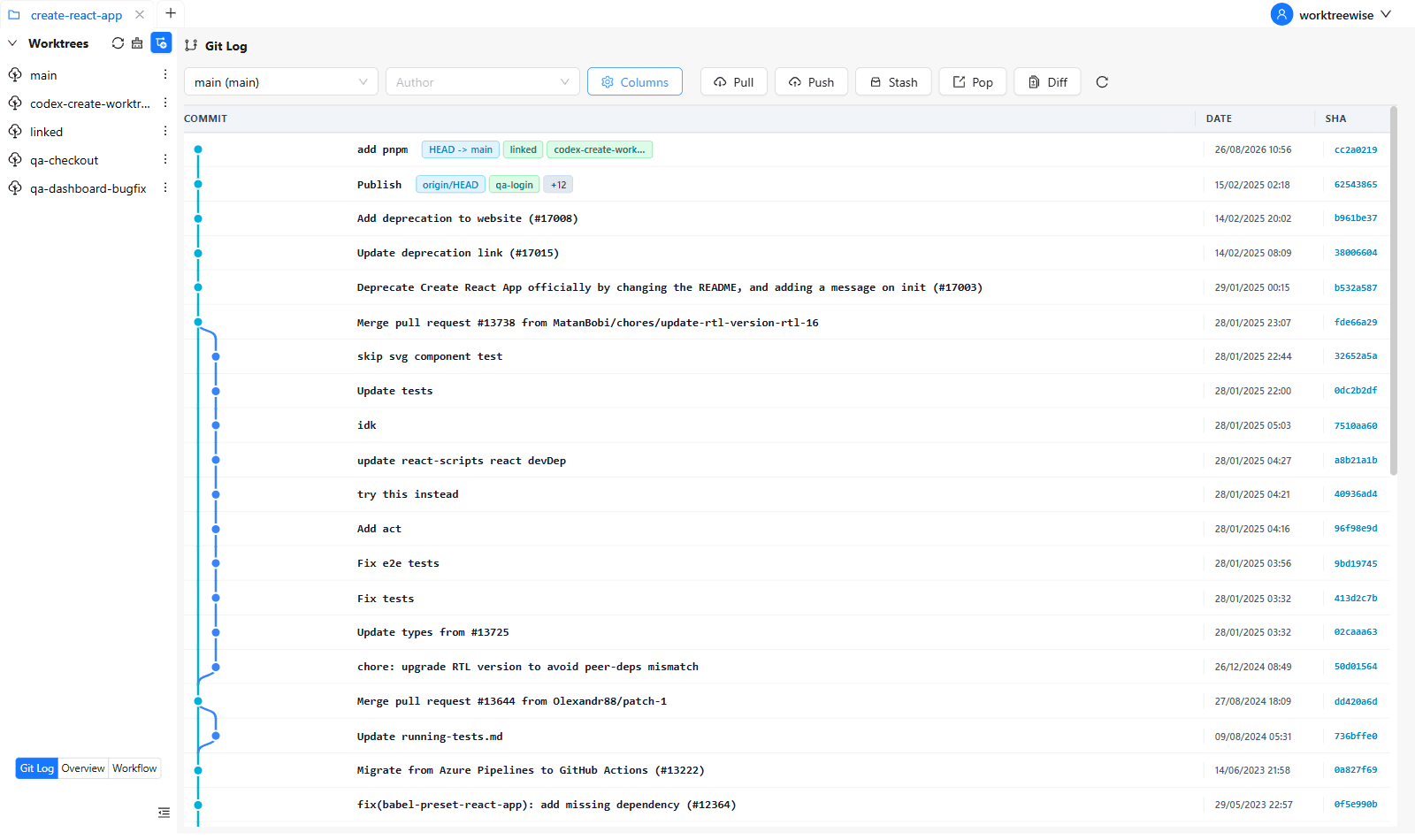
The Git Log is the central commit visualizer and working tree manager in WorktreeWise. It combines a high-performance interactive commit graph with real-time working tree status, inline file staging, commit authoring, and diff inspection.
Key Features & Toolbar Controls
The Git Log toolbar provides immediate access to essential repository operations and display filters:
1. Worktree & Scope Selection
Select any active worktree from the dropdown to scope the commit graph and working tree view to that specific worktree’s branch and file system. Switching worktrees immediately updates the log graph and working tree status.
2. Author Search & Filtering
Filter commits by specific contributors using the searchable Author dropdown. You can search by name or clear the filter to view all contributors.
3. Column Visibility & Privacy Controls
Click the Columns button to open the column configuration popover. You can independently show or hide:
- Author: Shows/hides contributor names and avatar indicators.
- Date: Shows/hides commit relative and absolute timestamps.
- SHA: Shows/hides Git commit hashes.
- Refs: Shows/hides branch and tag pointers.
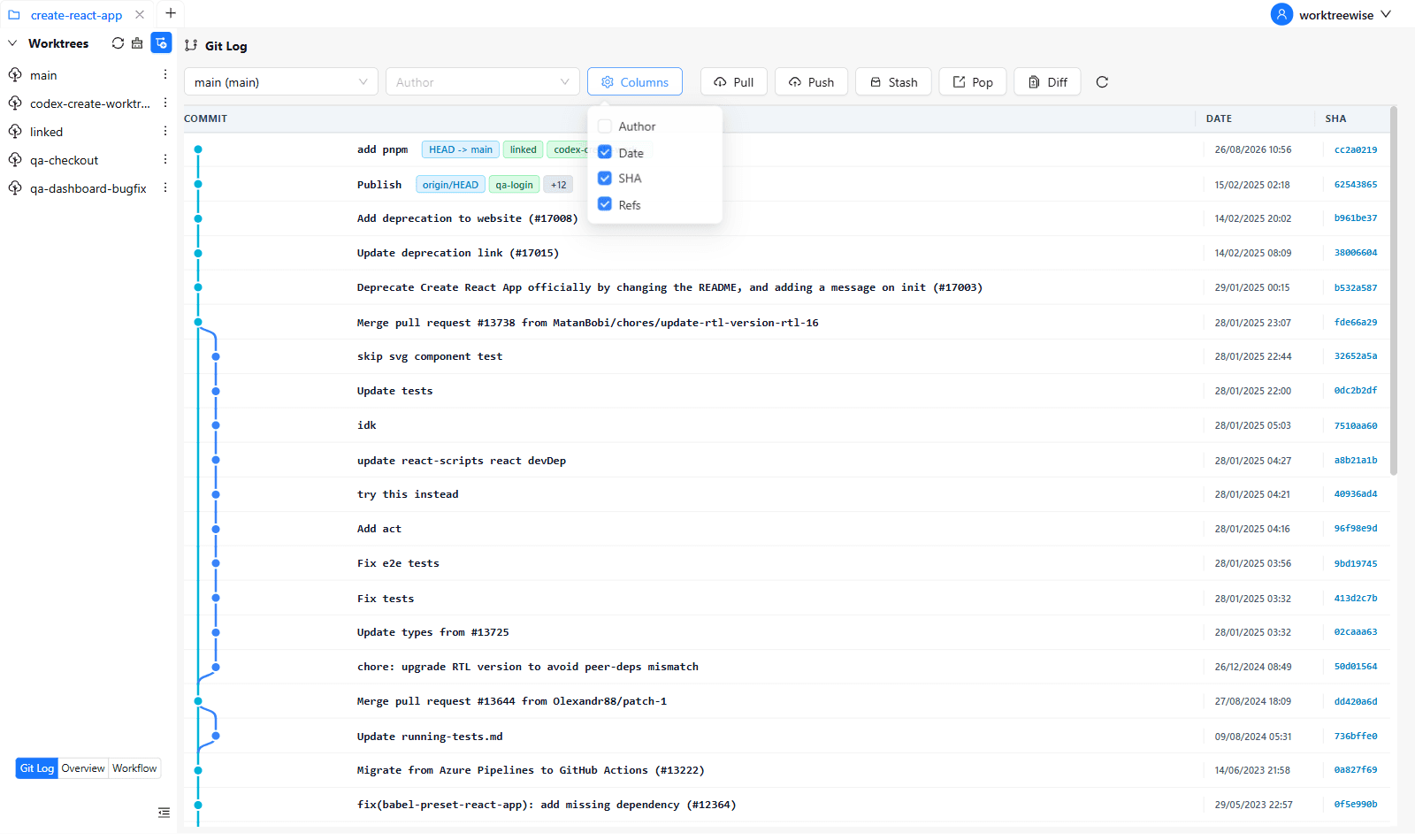
Privacy & Screencasts: Disabling the Author column is especially useful during live product demonstrations, recorded tutorials, or public webinars to protect contributor privacy while keeping the commit graph and messages readable.
4. Git Quick Actions
Directly trigger standard Git operations without opening an external terminal:
- Pull: Fetches and merges remote changes into the currently selected worktree.
- Push: Pushes local commits to the tracked upstream branch.
- Stash: Safely stores uncommitted local modifications in Git stash storage.
- Pop: Restores the most recently stashed changes back into your working tree.
- Diff (
Shift+D): Opens the pairwise Git Diff comparison modal. - Reload (
⟳): Re-reads commit history and working tree status from disk.
Working Tree & Commit Authoring
At the top of the Git Log graph, the Working Tree row displays the live status of uncommitted modifications in the selected worktree:
- Change Badges: Displays color-coded counts of modified (blue), added (green), and deleted (red) files.
- Automatic Status Sync: The working tree automatically polls for file changes every 4 seconds and whenever the application window regains focus.
Staging & Discarding Changes
Clicking the Working Tree row opens the Working Tree Panel on the right side of the screen:
- Staged vs. Unstaged Lists: Files are grouped into Staged Changes and Changes (unstaged).
- Stage / Unstage All: Stage or unstage the entire set of changes with a single click.
- Per-File Staging: Click
+to stage individual files or-to unstage. - Discard Changes: Click the trash icon to discard modifications on unstaged files.
- For modified files: Restores file content to the
HEADstate. - For untracked files: Permanently removes the untracked file from disk after an explicit confirmation prompt.
- For modified files: Restores file content to the
Authoring Commits
Directly below the file lists in the Working Tree Panel:
- Summary: Enter the single-line commit title (required).
- Description: Add optional multi-line extended commit notes.
- Amend Commit: Check the Amend box to modify the previous commit. Toggling Amend automatically populates the input fields with the previous commit’s summary and message.
- Commit Button: Stages your message and creates the Git commit, immediately updating the commit graph.
Inline File Diffs
Inspecting Working Tree Files
Clicking any file in the Working Tree Panel opens the Working Tree File Diff Pane:
- Highlights additions (green) and deletions (red) with full code syntax highlighting.
- Shows total added and deleted line counts.
- Displays convenient Stage, Unstage, and Discard buttons directly inside the diff header.
Inspecting Historical Commits
Clicking any commit in the Git Log graph opens the Commit Details Panel:
- Displays the full commit SHA, commit message, author name, timestamp, and parent commits.
- Summarizes total file count and aggregate diff metrics (
+additions/-deletions). - Lists every modified, added, or deleted file with status tags.
- Clicking any file opens the Commit File Diff Pane, displaying the exact line-by-line diff introduced by that specific commit.
Performance & Virtualization
- Gzip Compression: Git Log output is compressed with gzip and decompressed on the client using
pako.ungzip, ensuring fast transfer times even across repositories with tens of thousands of commits. - Infinite Scroll Pagination: Commits load in increments of 40 (
LIMIT = 40), maintaining low memory usage and smooth 60fps rendering during scrolling.