Lock a Git Worktree
Locking a worktree is a built-in Git protection mechanism that prevents accidental deletion, renaming, moving, or pruning of critical working directories. WorktreeWise allows you to apply and annotate worktree locks with descriptive human-readable reasons.
When to Lock a Worktree
Consider locking a worktree in scenarios such as:
- Long-Running Background Tasks: When a worktree is actively compiling a large build, running a benchmark, or executing an extended test matrix.
- Detached or Network Storage: When a worktree resides on a network share or removable drive that might temporarily disconnect (preventing
git worktree prunefrom deleting its registration while offline). - Staging and Release Verification: When an environment must remain strictly unchanged pending QA or deployment sign-off.
- Experimental Spikes: When preserving uncommitted exploratory work that you do not want altered during routine repository maintenance.
How to Lock a Worktree
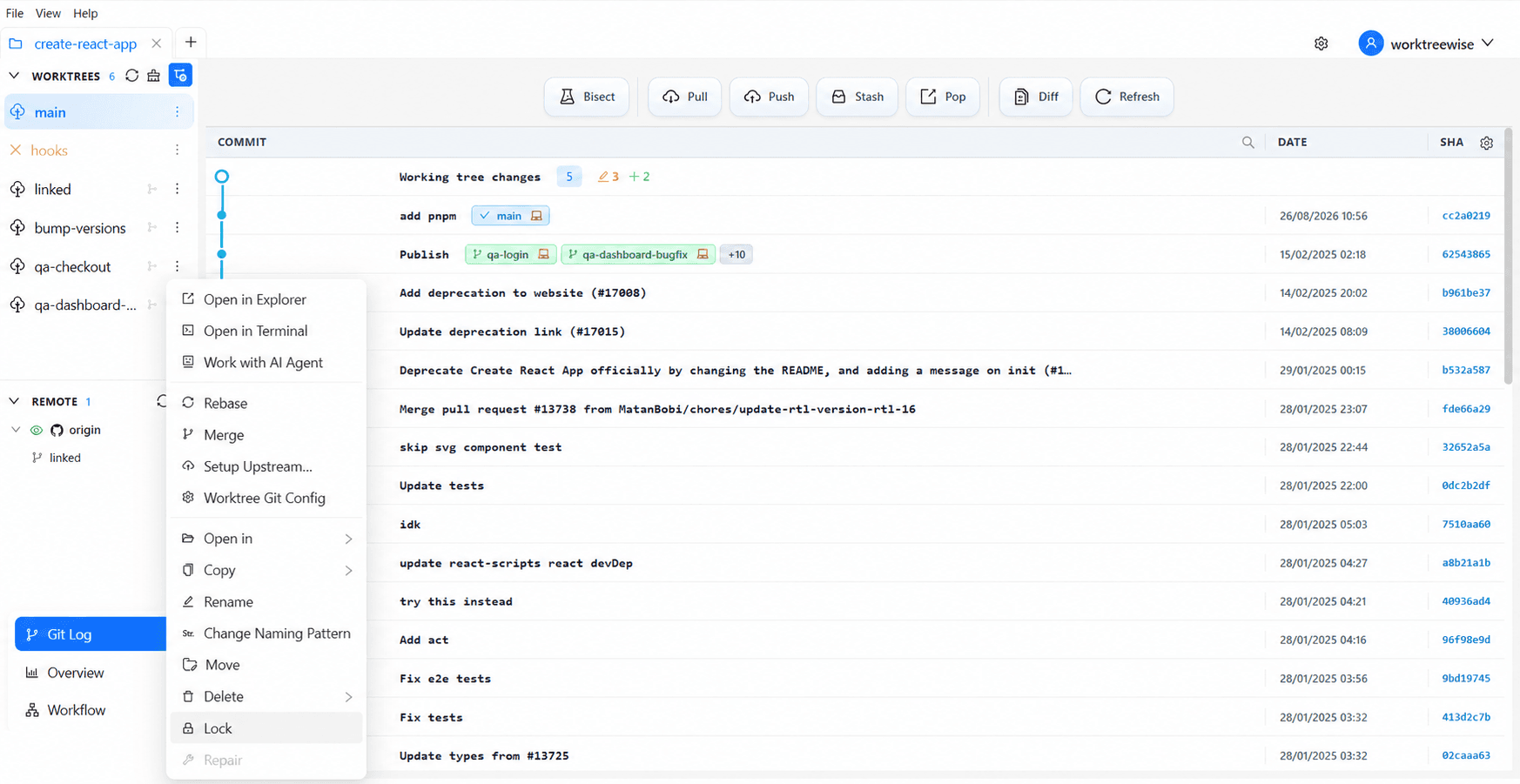
- In the Worktrees panel, locate the worktree you want to safeguard.
- Select the three-dot Actions menu and choose Lock.
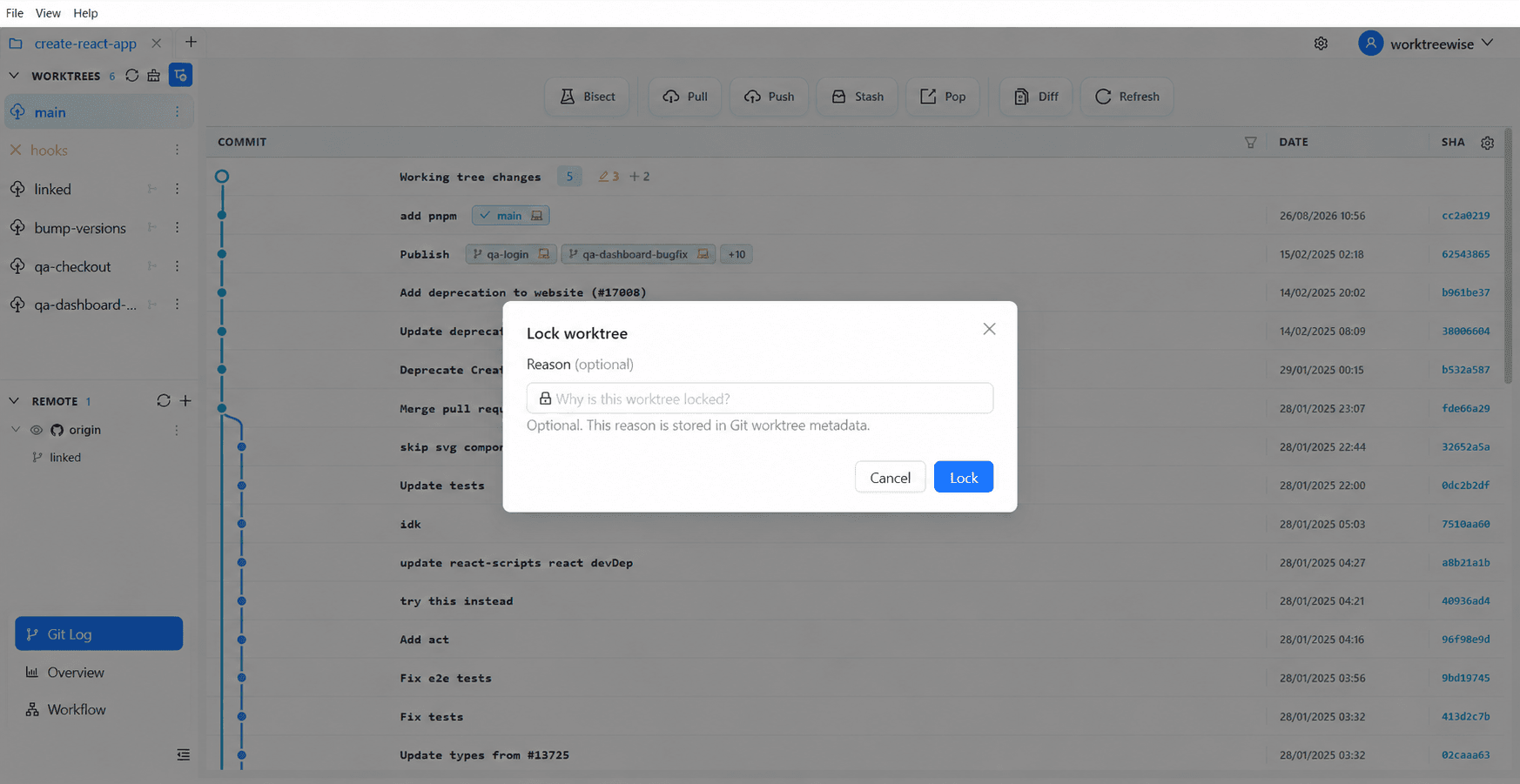
- In the dialog, enter a descriptive Reason (for example,
Preserving release candidate v1.2.0-rc2 for staging smoke tests). - Select Lock.
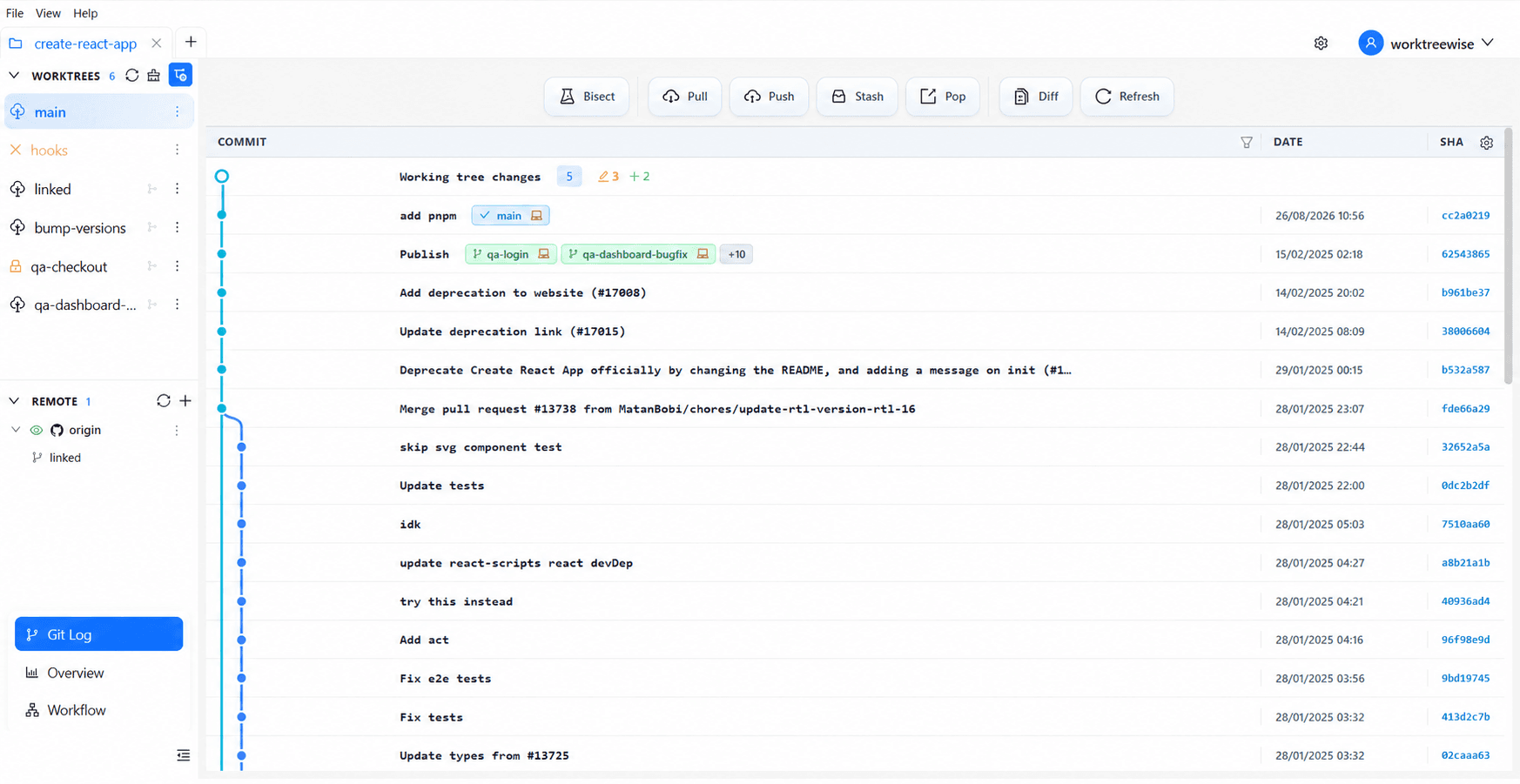
After confirmation, a lock icon appears beside the worktree in the sidebar.
Protection Guarantees
When a worktree is locked:
| Operation | Status When Locked | Protection Guarantee |
|---|---|---|
| Delete | Disabled | Cannot be deleted via the UI or accidental CLI command. |
| Rename | Disabled | Worktree directory and branch name cannot be modified. |
| Move | Disabled | Filesystem path cannot be relocated. |
| Prune | Skipped | Prune operations skip locked entries, even if the directory is temporarily unmounted or unreachable. |
Visual Status Indicators
- A Lock icon (🔒) appears next to the worktree name in the navigation sidebar.
- In the Worktree Overview, the worktree displays a
Lockedbadge and displays the recorded lock reason.
Related Pages
- Unlock a Git Worktree: Lift lock protection to restore maintenance operations.
- Delete a Git Worktree: Review deletion safeguards.
- Prune Damaged Worktrees: Learn how pruning handles locked versus unlocked worktrees.