Worktree Overview Dashboard
The Worktree Overview provides a centralized dashboard for monitoring repository health, branch divergence, uncommitted modifications, activity recency, and disk consumption across every linked worktree.
To access the Worktree Overview:
- Select Overview at the bottom of the Worktrees sidebar.
- Or press Shift + O while focused on the Worktrees view.
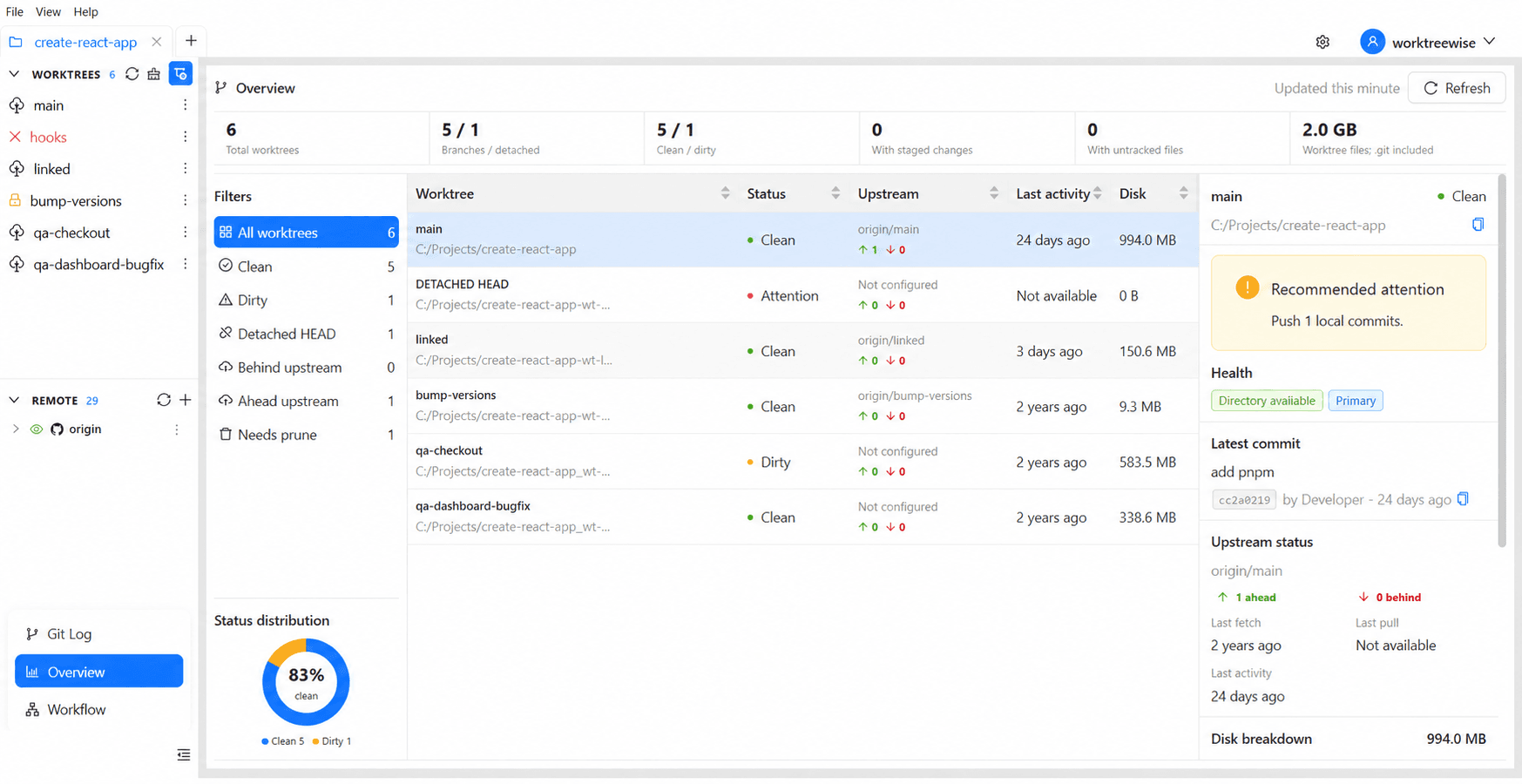
Live Repository Metrics
At the top of the Overview dashboard, six live metric cards provide an immediate snapshot of your repository state:
| Metric Card | What It Measures | Why It Matters |
|---|---|---|
| Total worktrees | Count of all registered worktrees | Tracks active parallel working directories. |
| Branches / detached | Branch-linked worktrees vs. detached HEAD states | Identifies worktrees not currently committing to a named branch. |
| Clean / dirty | Worktrees with no uncommitted changes vs. modified files | Surfaces uncommitted experiments and unfinished work across branches. |
| With staged changes | Worktrees containing changes in the Git index | Flags staged files ready for commit before switching contexts. |
| With untracked files | Worktrees containing unversioned files | Identifies missing .gitignore entries or uncommitted build artifacts. |
| Disk consumption | Aggregate disk space across all worktrees | Combines tracked source files, external dependencies (node_modules), build caches, and Git metadata. |
Status Distribution & Quick Filters
The left sidebar of the Overview provides visual health distribution and one-click table filtering:
Clean vs. Dirty Distribution
A color-coded donut chart displays the percentage of Clean versus Dirty worktrees across the repository.
Quick Filter Buttons
Select any filter button to isolate specific worktree states in the central table:
| Filter | Filter Criteria |
|---|---|
| All worktrees | Displays all registered primary and linked worktrees. |
| Clean | Shows only worktrees with zero uncommitted modifications. |
| Dirty | Shows worktrees with modified, unstaged, or untracked changes. |
| Detached HEAD | Displays worktrees not checked out to a named branch. |
| Behind upstream | Highlights worktrees that require a pull or rebase from their remote tracking branch. |
| Ahead upstream | Displays worktrees with local commits ready to be pushed to remote. |
| Needs prune | Flags stale worktrees whose physical directory was removed or moved outside WorktreeWise. |
Interactive Worktree Table
The center table displays sortable columns for all filtered worktrees:
- Worktree: Displays the worktree name and absolute path. Select any row to inspect details in the right-side Inspector panel.
- Status: Visual status badge:
- ● Clean: Working directory has no uncommitted changes.
- ● Dirty: Uncommitted modifications or untracked files exist.
- ● Attention: Merge conflicts or missing filesystem directory detected.
- Upstream: Displays the configured remote tracking branch with commit divergence counters: Ahead (↑) and Behind (↓).
- Last activity: Relative timestamp indicating the last commit or filesystem alteration (e.g.
2 hours ago,3 days ago). - Disk: Total disk usage formatted in bytes (KB, MB, GB). Displays
Calculating…while background calculations complete.
Worktree Details Inspector Pane
Selecting any worktree in the table opens an in-depth Inspector pane on the right:
Header & Health Status Tags
- Worktree Path: Displays the full filesystem directory with a one-click copy button.
- Attention Alerts: Automatically surfaces if a worktree requires pruning, contains merge conflicts, or is critically stale.
- Status Tags:
Directory: Available (green) or missing (red).Primary: Identifies the main repository clone root.Locked: Indicates administrative lock protection.Needs prune: Indicates missing filesystem directory with lingering Git registration.Stale: Flags branches with no activity for extended durations.
Latest Commit Card
Displays the HEAD commit on the worktree’s branch:
- Commit subject headline.
- 8-character commit SHA with one-click clipboard copy.
- Author name and relative commit timestamp.
Upstream Divergence
- Full remote-tracking branch identifier (e.g.
origin/feature-login). - Divergence indicator displaying ahead and behind commit counts.
- Timestamps for Last fetch, Last pull, and Last activity.
4-Way Granular Disk Breakdown
WorktreeWise breaks down storage usage into four distinct categories:
- Project files: Source files tracked by Git.
- Dependencies: External package directories (
node_modules,vendor). - Build & cache: Compiler outputs, dist directories, and caches (
dist,.next,build,target). - Git data: Git administrative metadata (
.gitdirectory or worktree gitdir reference).
Large Untracked Files Alert
The Inspector pane highlights unexpectedly large untracked files (e.g. downloaded test datasets, database dumps, or media assets) along with exact file sizes, helping you prevent accidental commits of oversized files.
Related Pages
- Create a Git Worktree: Initialize new worktrees with sparse checkout and dependency sharing.
- Prune Damaged Worktrees: Safely clean up orphaned worktree registrations.
- Repair a Damaged Worktree: Reconnect relocated worktree directories.