Keyboard Shortcuts
WorktreeWise provides global and context-sensitive keyboard shortcuts to navigate tabs, trigger Git operations, control workflows, and manage terminal panes without reaching for the mouse.
Press Shift + K anywhere in the application to open the interactive in-app keyboard shortcuts modal.
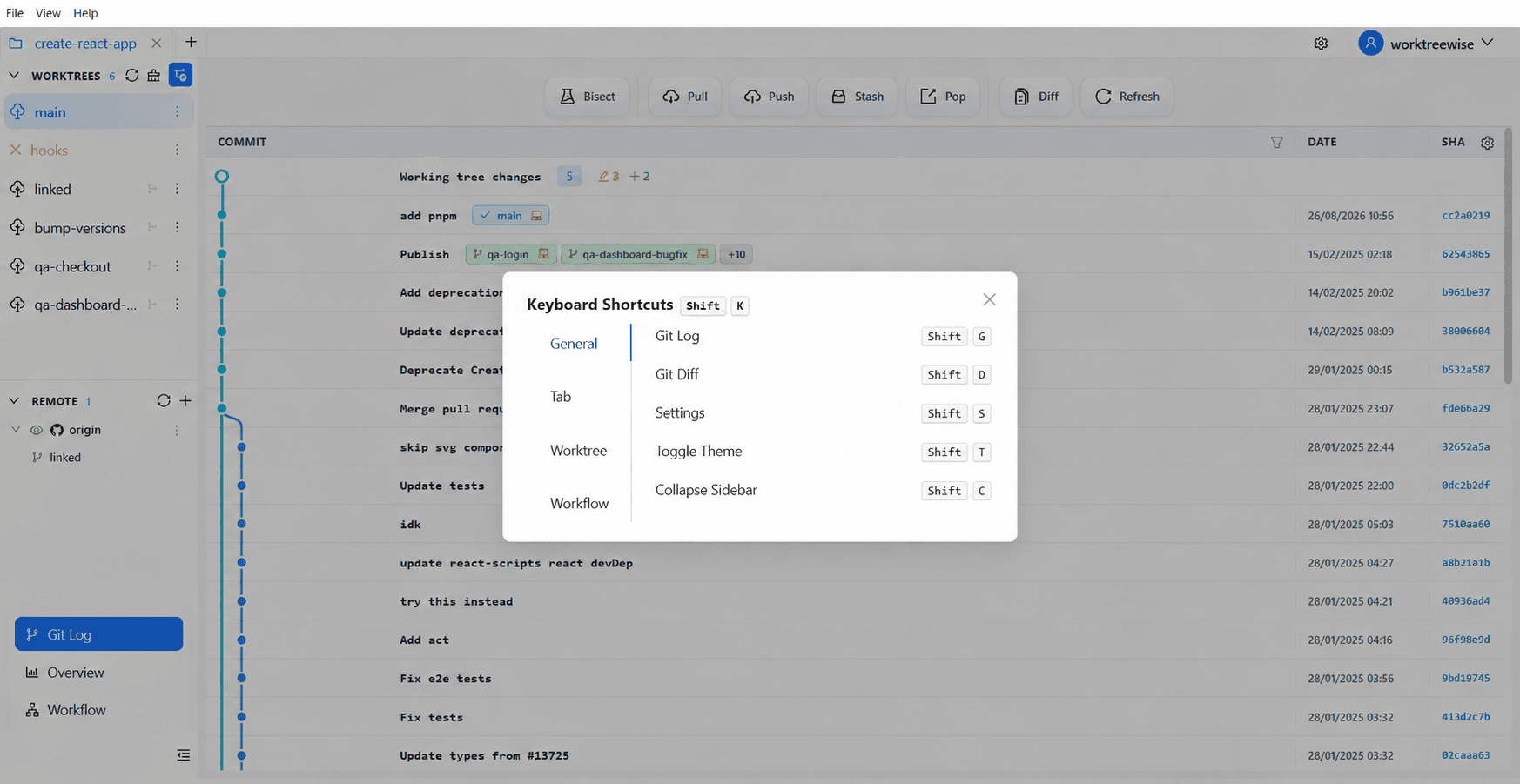
General Shortcuts
| Action | Shortcut | Description |
|---|---|---|
| Git Log | Shift + G | Open the Git Log commit history graph and details panel |
| Git Diff | Shift + D | Open the pairwise Git Diff comparison modal |
| Settings | Shift + S | Open the Settings dialog (Worktrees, Editors, AI Agents, Shell, Git, Encoding) |
| Toggle Theme | Shift + T | Toggle immediately between Light and Dark mode |
| Collapse Sidebar | Shift + C | Expand or collapse the left navigation sidebar |
| Keyboard Shortcuts | Shift + K | Open the interactive in-app shortcuts cheat sheet |
Tab Management
| Action | Shortcut | Description |
|---|---|---|
| New Tab | Shift + N | Open a new repository tab |
| Close Current Tab | Shift + F4 | Close the active repository tab |
| Next Tab | Shift + → | Switch focus to the next repository tab |
| Previous Tab | Shift + ← | Switch focus to the previous repository tab |
| Open Repository | Shift + O | Open the repository chooser dialog to load a project |
Worktree Operations
| Action | Shortcut | Description |
|---|---|---|
| Add Worktree | Shift + W | Open the Create Worktree modal |
| Refresh Worktrees | Shift + R | Reload statuses, branches, and directory states for all worktrees |
| Prune Worktrees | Shift + P | Open the Review-First Prune dialog to inspect and remove stale records |
| Worktree Overview | Shift + O | Switch to the Worktree Overview dashboard (when focused in Worktrees view) |
Workflow Execution
| Action | Shortcut | Description |
|---|---|---|
| Add Workflow | Shift + A | Open the drawer to define a new reusable command sequence |
| Import Workflow | Shift + I | Open the file picker to import workflow definitions from another repository |
| Stop Workflow | Esc | Safely terminate all active workflow child processes |
| Enter Fullscreen Log | Shift + F | Expand the live Workflow Execution Log to full screen |
| Exit Fullscreen Log | Esc | Exit full screen mode in the Workflow Execution Log |
Terminal & AI Agent Panes
| Action | Shortcut | Description |
|---|---|---|
| Next Pane | Ctrl + PageDown | Cycle keyboard focus forward to the next terminal or agent pane |
| Previous Pane | Ctrl + PageUp | Cycle keyboard focus backward to the previous terminal or agent pane |
In-App Shortcut Reference
The in-app reference dialog adapts dynamically to your operating system (Windows, macOS, or Linux) and categorizes shortcuts into four tabs:
- General
- Tab
- Worktree
- Workflow
Use Shift + K at any time to verify available shortcuts or discover platform-specific key combinations.