Workflows
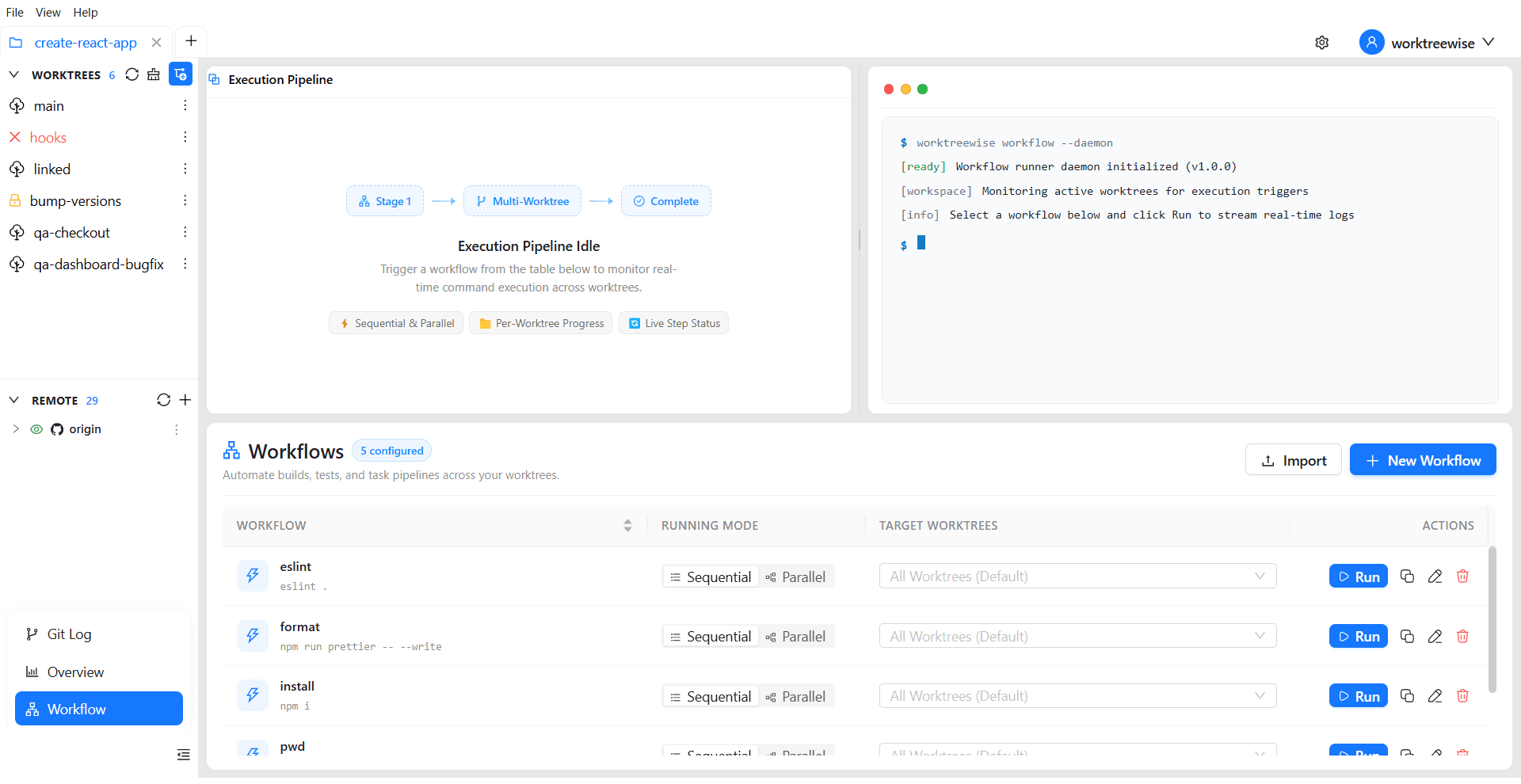
Workflows allow you to define, reuse, and execute ordered command sequences across one or multiple worktrees in Sequential or Parallel mode. Automate repetitive tasks—such as installing dependencies across branches, running concurrent test suites, or seeding databases—with real-time PTY log streaming.
To access Workflows:
- Select Workflow at the bottom of the Worktrees sidebar.
Workflow Lifecycle
Construct reusable command sequences with step-by-step ordering and fail-fast validation.
Create a WorkflowExecute workflows sequentially or in parallel with live ANSI color streaming and process management.
Run a WorkflowUpdate existing command chains or clone workflows to create specialized variations.
Edit & DuplicateImport workflow definitions from .git/WorktreeWise/ across repositories with conflict detection.
Remove obsolete workflow recipes from your library without altering worktree files or branches.
Delete a WorkflowWorkspace Architecture
The Workflows view is organized into three sections:
1. Saved Workflows Table
Displays all workflow definitions configured for the current repository:
- Workflow Name: Descriptive title (e.g.
Verify PR Matrix,Reset Local Database). - Commands: Ordered preview of commands configured for each step.
- Execution Mode: Toggle between Sequential and Parallel modes.
- Target Worktrees: Multi-select dropdown to choose target worktrees. Leaving this empty runs the workflow across all active worktrees.
- Actions:
- Play (▶) / Stop (⏹): Start or cancel workflow execution.
- Edit (✏️): Open the slide-out drawer to reorder or edit commands.
- Duplicate (📋): Clone the workflow to create a new variant.
- Delete (🗑️): Remove the workflow definition.
2. Live Log Streaming Panel
The log panel renders streaming terminal output with full ANSI color support:
- Shows stdout and stderr for each target worktree in real time.
- Highlights execution failures and non-zero exit codes.
- Fullscreen Mode: Press Shift + F to expand the log panel; press Esc to exit full screen.
3. Toolbar Controls
- Add Workflow (
Shift + A): Open the drawer to define a new workflow step-by-step. - Import Workflow (
Shift + I): Import workflow definitions from another repository.
Sequential vs. Parallel Execution
| Characteristic | Sequential Execution | Parallel Execution |
|---|---|---|
| Scheduling | Runs all commands on Worktree A to completion before starting Worktree B. | Spawns background worker threads concurrently across all selected worktrees. |
| Best Used For | Tasks sharing ports or resources (database migrations, seeds, local service setups). | Independent CPU-bound tasks (linting, unit tests, typechecking, builds). |
| Resource Safety | Prevents port collisions and database locks. | Requires worktrees to have isolated ports or independent configurations. |
| Execution Time | Linear duration proportional to worktree count. | Fast execution utilizing multi-core concurrency. |
Best Practices for Workflow Commands
- Non-Interactive Execution: Ensure commands execute without waiting for interactive prompts (e.g. use
npm ciinstead ofnpm install, or supply-y/--yesflags). - Relative Paths: Commands run with the target worktree root as the current working directory (
cwd). Use relative paths to ensure cross-worktree portability. - Fail-Fast Error Handling: If a step returns a non-zero exit code, WorktreeWise halts further execution for that worktree and flags the failing command in the log panel.
Related Pages
- Create a Workflow: Build your first automation pipeline.
- Run a Workflow: Learn about the pseudo-terminal engine and process controls.
- Shell Settings: Configure the default shell binary used for workflow runs.