Overview
WorktreeWise for JetBrains is a lightweight IDE plugin designed to make you faster and more productive when working with Git worktrees.
💡 The plugin is not a replacement for the WorktreeWise desktop app. Its main role is to serve the WorktreeWise app by providing quick IDE actions that save time during daily development.
It allows you to interact with your existing worktrees directly from your JetBrains IDE, without breaking your workflow.
What this plugin is (and is not)
✅ What it does
- Lets you switch Git worktrees directly from the IDE
- Opens the current project in WorktreeWise to perform advanced worktree management
- Eliminates unnecessary context switching
- Focuses on speed and convenience
❌ What it does not do
- It does not manage worktrees by itself
- It does not replace the WorktreeWise desktop application
- It does not duplicate advanced features (workflows, hooks, diffs, etc.)
All advanced actions remain in the WorktreeWise app.
How this plugin is different from other Git worktree plugins
At first glance, switching Git worktrees may look like a feature already covered by other plugins.
However, WorktreeWise for JetBrains solves a different problem.
Typical Git worktree plugins
Most existing Git worktree plugins:
- Create or switch worktrees in isolation
- Open worktrees as completely separate projects
- Do not preserve IDE-specific context
- Treat each worktree as a brand-new IDE environment
As a result, when switching worktrees you often lose:
- Bookmarks
- Run / Debug configurations
- IDE project context
- Custom tooling setup
This leads to repetitive reconfiguration and context loss.
What makes WorktreeWise different
WorktreeWise for JetBrains is tightly integrated with the WorktreeWise app, which already manages worktrees with a shared development context.
When you switch a worktree using this plugin:
- ✅ Bookmarks are preserved
- ✅ Run / Debug configurations are preserved
- ✅ IDE context stays consistent
- ✅ You don’t need to reconfigure your environment
This is the same principle used by WorktreeWise when opening worktrees in JetBrains IDEs from the desktop app.
Why this matters
If you:
- work on multiple branches daily
- switch frequently between features, fixes, or environments
- rely heavily on bookmarks and run configurations
Then preserving IDE context is critical for productivity.
This plugin focuses on speed without sacrificing context.
Design philosophy
Other plugins focus on Git operations. WorktreeWise focuses on developer experience.
That’s why this plugin:
- Is intentionally simple
- Delegates advanced logic to the WorktreeWise app
- Prioritizes fast, safe, and familiar switching
In short
| Feature | Typical plugins | WorktreeWise for JetBrains |
|---|---|---|
| Switch worktrees | ✅ | ✅ |
| Preserve bookmarks | ❌ | ✅ |
| Preserve run configs | ❌ | ✅ |
| Shared IDE context | ❌ | ✅ |
| Deep integration with WorktreeWise | ❌ | ✅ |
💡 If you already use WorktreeWise, this plugin gives you the fastest possible way to benefit from its worktree model directly inside your IDE.
Requirements
Before using the plugin, make sure that:
- ✅ WorktreeWise is installed on your machine
- ✅ You own a PRO or PRO PLUS WorktreeWise license
- ✅ You are using a JetBrains IDE
The plugin relies on the WorktreeWise app to function properly.
Installation
The plugin can be installed directly from the JetBrains Marketplace.
- Open your JetBrains IDE
- Go to Settings / Preferences → Plugins
- Search for WorktreeWise
- Click Install
- Restart your IDE if required
Once installed, the plugin automatically integrates with WorktreeWise.
Accessing the Plugin Actions
The plugin actions are available from the JetBrains menu:
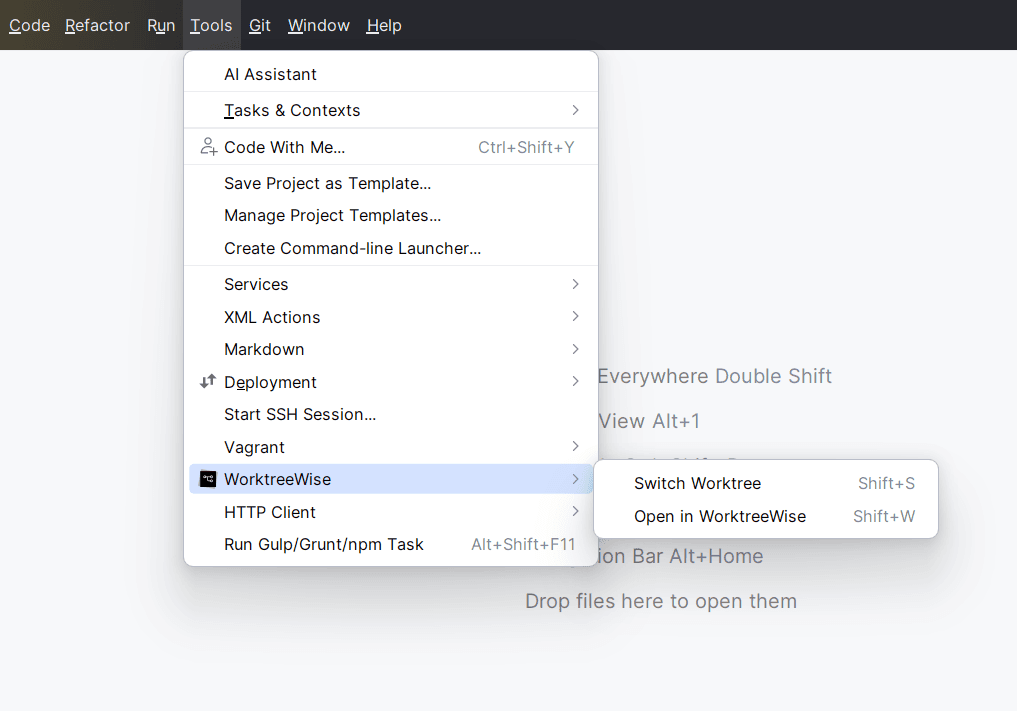
You can also assign custom keyboard shortcuts from the IDE settings for even faster access.
Available Actions
The plugin provides two focused actions, accessible from the IDE menu.
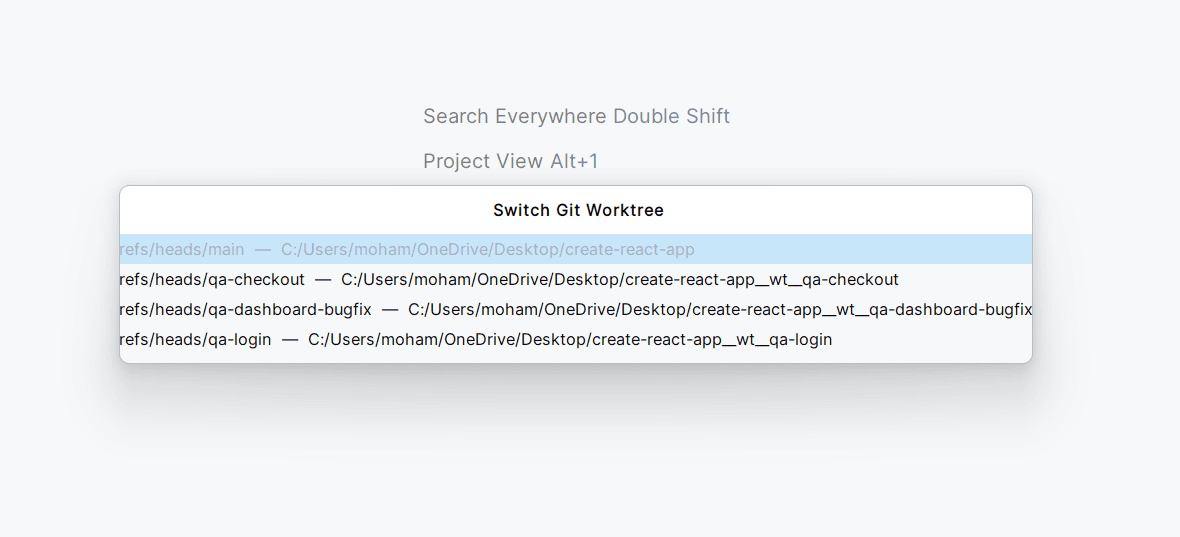
1. Switch Worktree
Switch Git worktrees directly from your IDE, without opening the WorktreeWise app.
This action is designed for speed and productivity when working on multiple branches.
How it works:
- Lists all available Git worktrees for the current repository
- Lets you switch instantly to another worktree
- Opens the selected worktree directly in the IDE
Typical use cases:
- Jumping between feature branches
- Quickly reviewing another worktree
- Parallel frontend / backend development
2. Open Project in WorktreeWise
Open the currently opened project in the WorktreeWise desktop app.
This is useful when you want to perform advanced worktree management after a quick IDE action.
How it works:
- Sends the current project path to WorktreeWise
- Opens the repository inside the WorktreeWise app
- Allows you to manage worktrees, workflows, hooks, and more
Typical use cases:
- Creating or deleting worktrees
- Running workflows across worktrees
- Visualizing Git diffs or logs
When should you use the plugin?
Use WorktreeWise for JetBrains when you want to:
- Stay focused inside your IDE
- Switch worktrees instantly
- Avoid unnecessary app switching
- Move faster during day-to-day development
Use the WorktreeWise desktop app when you need:
- Full worktree management
- Workflows and automation
- Hooks, diffs, and advanced Git features
Summary
The JetBrains plugin is a productivity companion to WorktreeWise.
It keeps your workflow fast, simple, and focused — while the WorktreeWise app continues to handle everything powerful behind the scenes.