Git Worktree Naming Pattern
When creating a new worktree, WorktreeWise assigns two identifiers:
- Worktree name → shown in the UI, by default the same as the branch name.
- Worktree folder name → created on disk, follows the naming pattern you configure in Settings.
This separation ensures that worktrees remain easy to recognize inside WorktreeWise, while their folders in the filesystem are clearly identifiable as project worktrees.
Example
If you define the naming pattern as: {repo}_wt_{branch}
- Creating a worktree from branch
feature-loginin repositorycreate-react-appwill: - Show as feature-login in the WorktreeWise UI.
- Create a folder named create-react-app_wt_feature-login in your filesystem.
Why Naming Pattern Matters
The naming pattern’s main role is to make it easier to understand in the filesystem that a folder is a worktree belonging to a project.
This helps you:
- Avoid mixing up worktree folders with other files.
- Keep a clear structure when managing multiple repositories.
- Instantly know which project and branch a worktree folder belongs to.
Supported Placeholders
You can use the following placeholders in your naming pattern:
{branch}→ Branch name{repo}→ Repository name
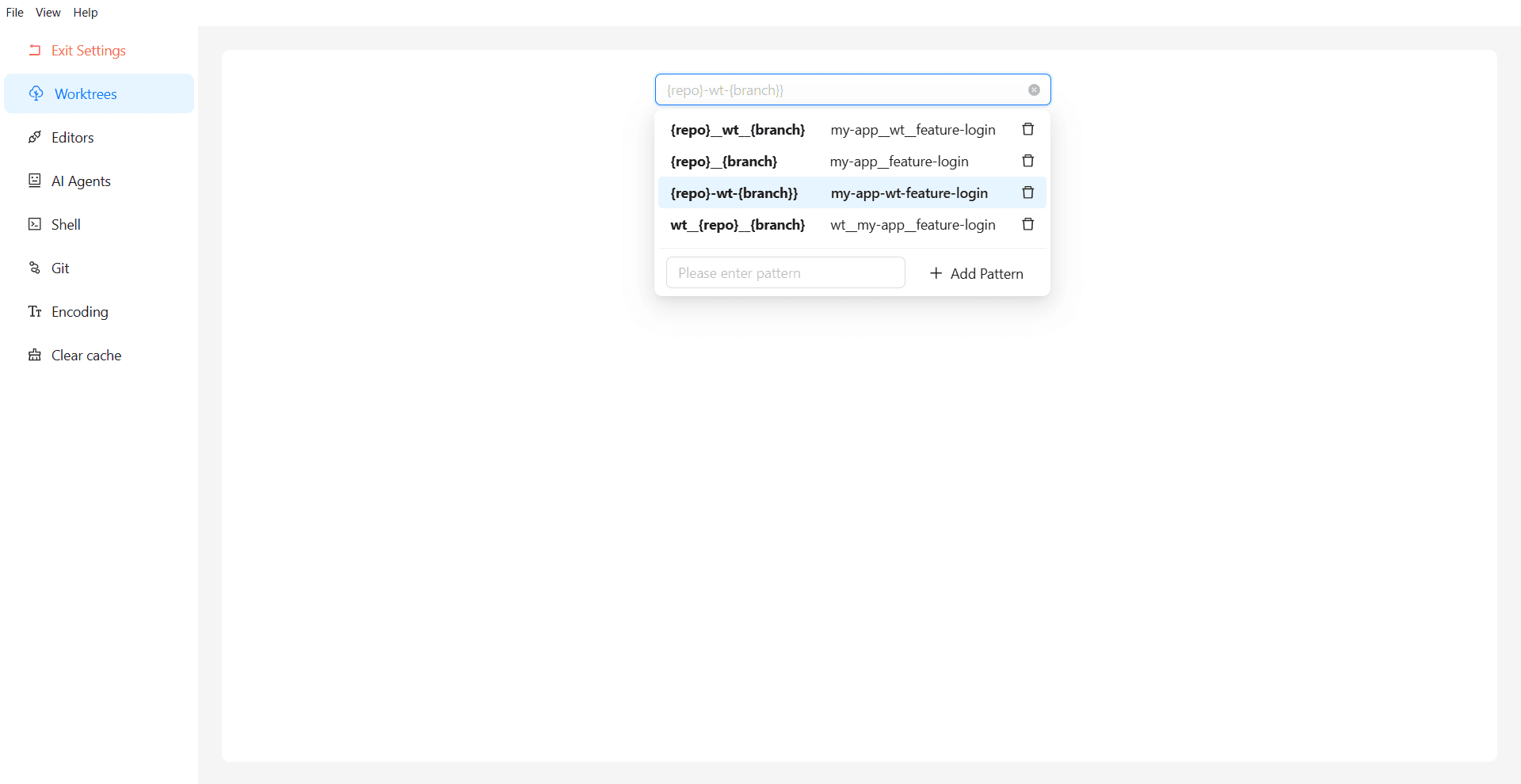
Configuring the Naming Pattern in Settings
To configure the default naming pattern:
- Open Settings from the menu.
- Navigate to the Worktrees tab.
- Choose an existing pattern or enter your own naming pattern using placeholders.
- Click Add Pattern if you want to save it for future use.
- Changes are saved automatically once you leave the tab.
💡 The settings dialog also provides examples of valid naming patterns.
If no custom naming pattern is defined, WorktreeWise will use this default naming pattern : {repo}_wt_{branch}
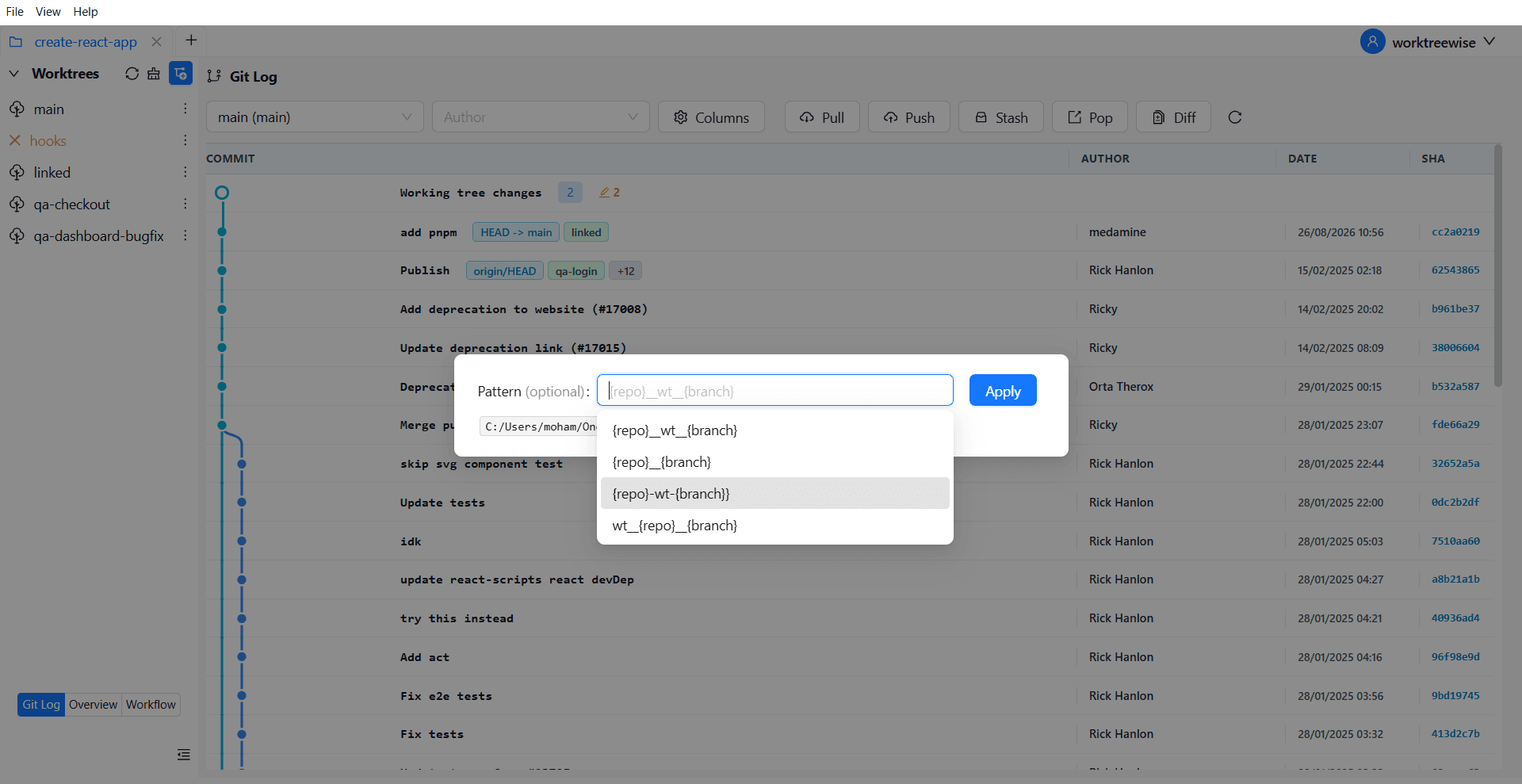
Changing the Naming Pattern for an Existing Worktree
You can also update the naming pattern of a worktree that already exists:
- Right-click on the worktree in the Worktrees list.
- Select Change Naming Pattern from the context menu.
- Enter a new pattern in the dialog.
- Click Apply to update the worktree’s folder name.
This is useful when you want to reorganize your filesystem or bring older worktrees in line with your new naming rules.