Repair a Damaged Worktree
A worktree becomes damaged when its filesystem directory or main repository clone is moved or renamed outside Git. WorktreeWise detects broken registrations, marks the worktree with a red status badge, disables actions that require an intact directory, and enables the Repair action.
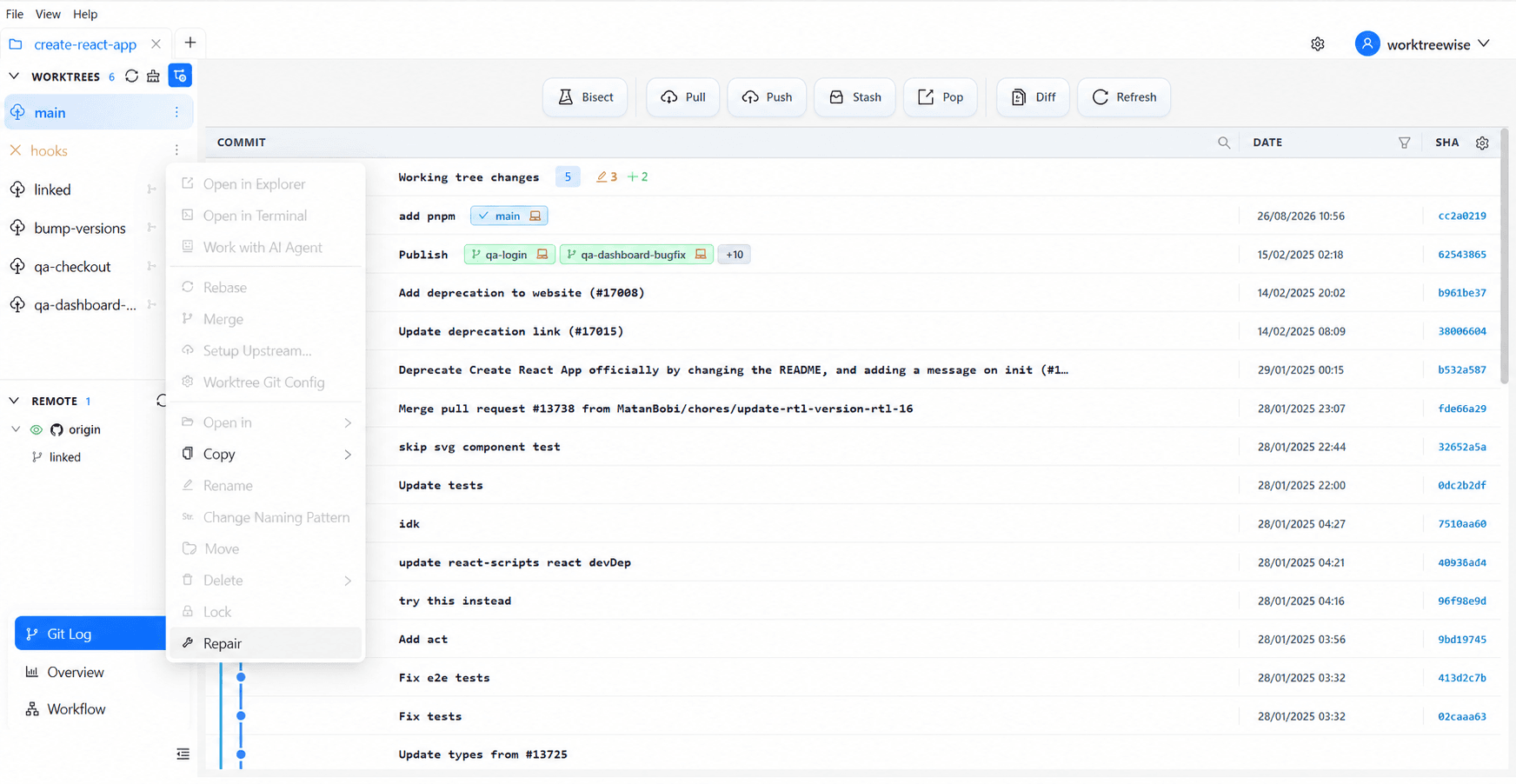
Repair the Connection
Identify the Damaged Worktree
Look for the red status indicator in the Worktrees panel. Select the three-dot actions menu. Actions requiring an intact path (such as Open in Terminal or Open in IDE) are automatically disabled.
Select Repair
Select Repair. When prompted, navigate to the worktree’s current directory on disk if it was moved or renamed. WorktreeWise executes Git’s repair routine to reconstruct reciprocal pointers between the worktree and the main repository.
Verify the Reconnected Worktree
Once repair completes, the worktree returns to a healthy status. Open the worktree or select Refresh to confirm that its branch, path, and actions are accessible again.
Repair vs. Prune Comparison
| Situation | Recommended Action | Outcome |
|---|---|---|
| Directory was moved or renamed | Repair | Restores Git pointers and reconnects existing files and branches without data loss. |
| Directory was permanently deleted | Prune | Purges obsolete administrative metadata from .git/worktrees/ and frees the branch for checkout elsewhere. |
Do not prune a worktree merely because its directory was moved. Repair it first so its uncommitted files and branch remain intact.
What Repair Changes
Repair updates Git’s administrative links: the worktree’s .git file and the matching record below the main repository’s .git/worktrees/ directory. It does not delete files, discard uncommitted changes, rename branches, or create new commits.
Related Pages
- Prune Damaged Worktrees: Safely remove registrations for deleted worktrees.
- Move a Git Worktree: Relocate worktrees safely without breaking pointer links.
- Worktree Overview Dashboard: Identify worktrees requiring attention across your repository.