Introduction
Welcome to the official documentation for WorktreeWise – a productivity tool designed to make working with Git worktrees simple and efficient.
Master Git worktrees, automate workflows, and open them in your IDE — everything you need to boost productivity with WorktreeWise.
Features
- Managing Git Worktrees – create, rename, move, delete, lock/unlock, and prune worktrees.
- Terminal & IDE Integrations – open worktrees in your terminal or IDE (e.g. WebStorm) while keeping all your configurations.
- Workflows – define commands once and run them across one or many worktrees in sequence or parallel.
- Code Generators – scaffold files quickly with customizable parameters (
input,select,confirm,multiselect). - Git Operations – explore commit history with Git Log and compare branches, worktrees, tags, or commits with Git Diff.
- Customization – toggle light/dark mode, configure editors, and adjust naming patterns for your worktrees.
Installation
1. Download WorktreeWise
Get the installer for your operating system from the official landing page:
2. Prerequisites
Make sure you have:
- Git installed on your machine.
- The Git bin folder added to your PATH (so WorktreeWise can run Git commands).
3. Before Installing WorktreeWise
- Windows: Double-clicking the installer may trigger a Windows SmartScreen warning.
⚠️ Note: This is normal for new apps and does not indicate a security issue. Click Run anyway to continue.
- Mac: macOS may block the installer as it comes from an unidentified developer.
⚠️ Note: This is expected. Go to System Preferences → Security & Privacy → General and allow the installer to run.
🔜 Coming soon: We plan to sign and notarize the installer, so these warnings will no longer appear in future versions.
4. Installation Steps
- Run the installer and follow the on-screen instructions.
- Once installed, launch WorktreeWise.
5. First Launch & License Activation
When you launch WorktreeWise for the first time:
- Launch WorktreeWise After installation, WorktreeWise will show the Open a Repository screen.

-
Select a Git Repository Click Open Repository and select the Git repository you want to work with.
-
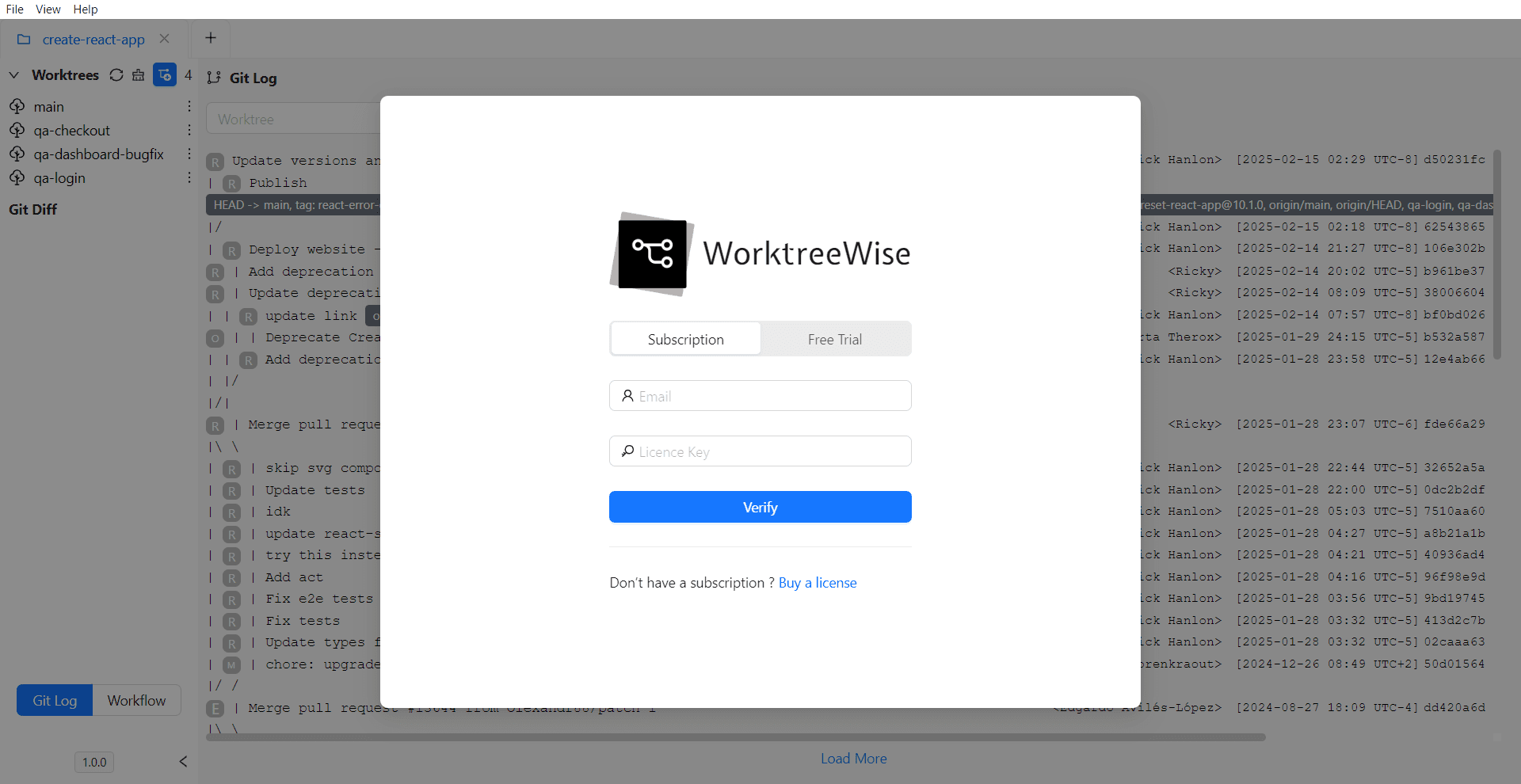
License Activation Popup Upon opening a repository for the first time, a popup will appear asking for:
- Email — the email you used when purchasing WorktreeWise.
- License key — the unique key provided in your purchase confirmation email.
Fill in both fields and click Verify.
- Successful Activation
- You’ll be logged in automatically.
- The repository will open, allowing you to start managing your worktrees.